

YouTube is famous for its algorithms, which randomly boosts weird videos to the front page occasionally. However, users also get videos that are targeted towards their interests, all curated specifically for them. While some people don’t want them, others like recommendations to provide them with more content.
YouTube makes it possible to reset the recommendations, which can be affected if someone else watches videos typically outside your interests. You can start anew once you perform a reset, only seeing the videos you enjoy.
How to Reset YouTube Recommendations on an iPhone
YouTube uses one primary method to recommend videos when you’re on the home screen. The algorithm knows your search history on YouTube and uses that to display videos that you might like.
YouTube can also tell that you like something by noticing your watch time, clicks, and shares. If you finish a video, the algorithm will know you enjoyed it. Clicks are also similar, as you can notice similar videos appearing after clicking on funny pet videos, for example.
However, the primary method remains your YouTube history, which contains the words you type into the search bar and the videos you’ve watched. Therefore, to reset your recommendations, you’ll have to delete all of that information so the algorithm can start over. By doing so, you’ll find the videos that pop up match your interests better.
Here’s how to delete your YouTube History:
- On your iPhone, open the YouTube app.
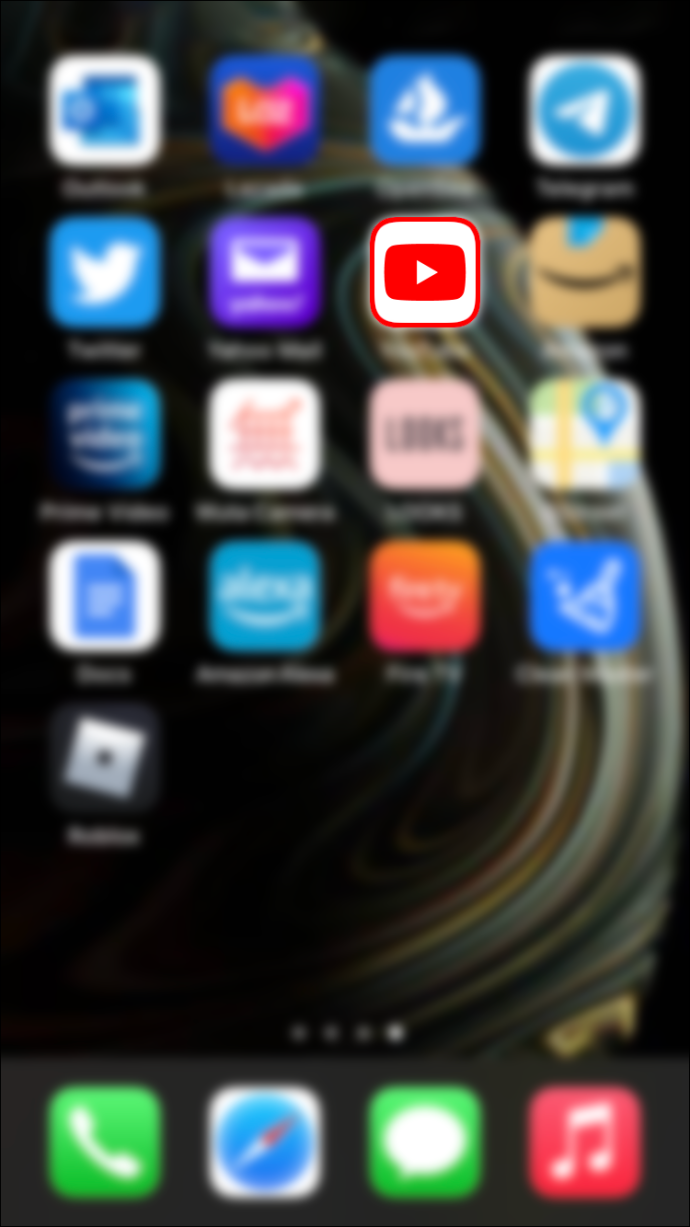
- Select your profile located at the top-right corner.

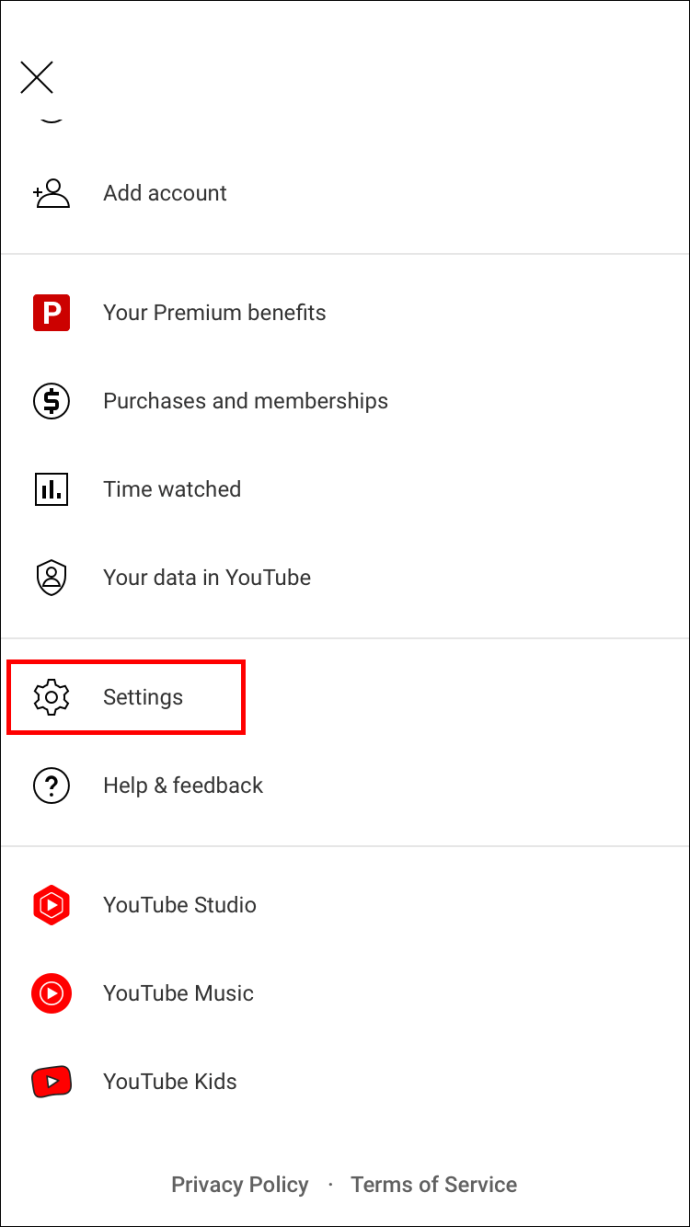
- Tap on “Settings.”
- Look for “History & Privacy.”
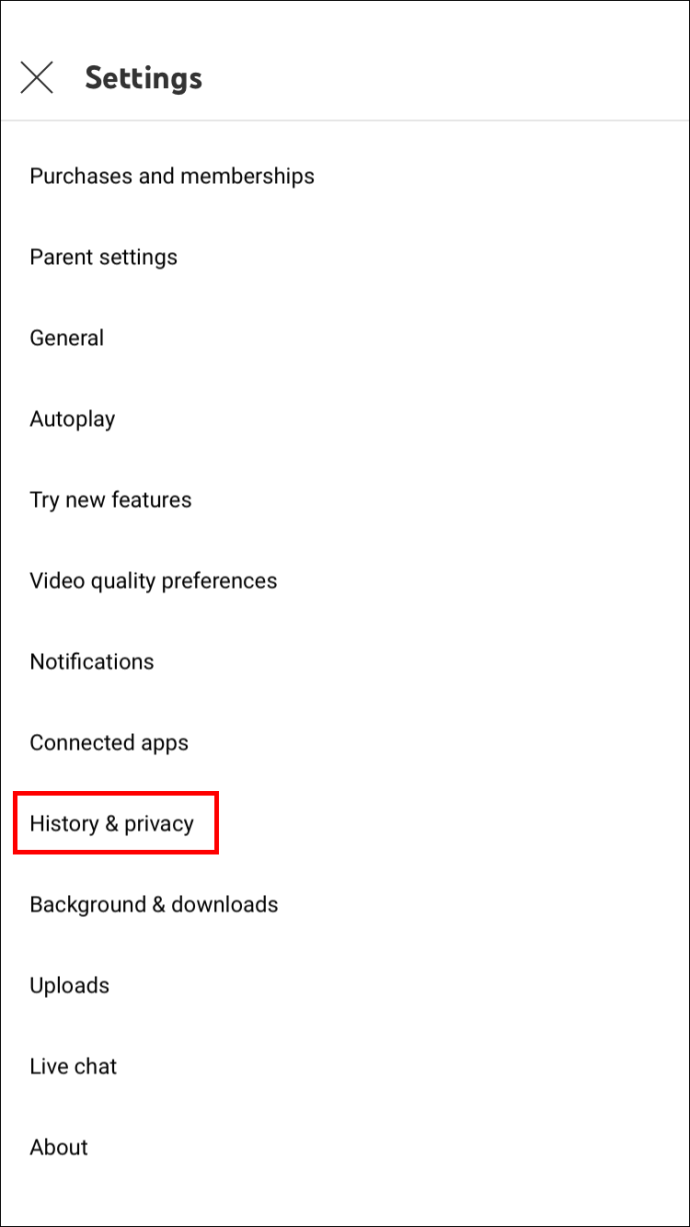
- Select “Clear Search History.”
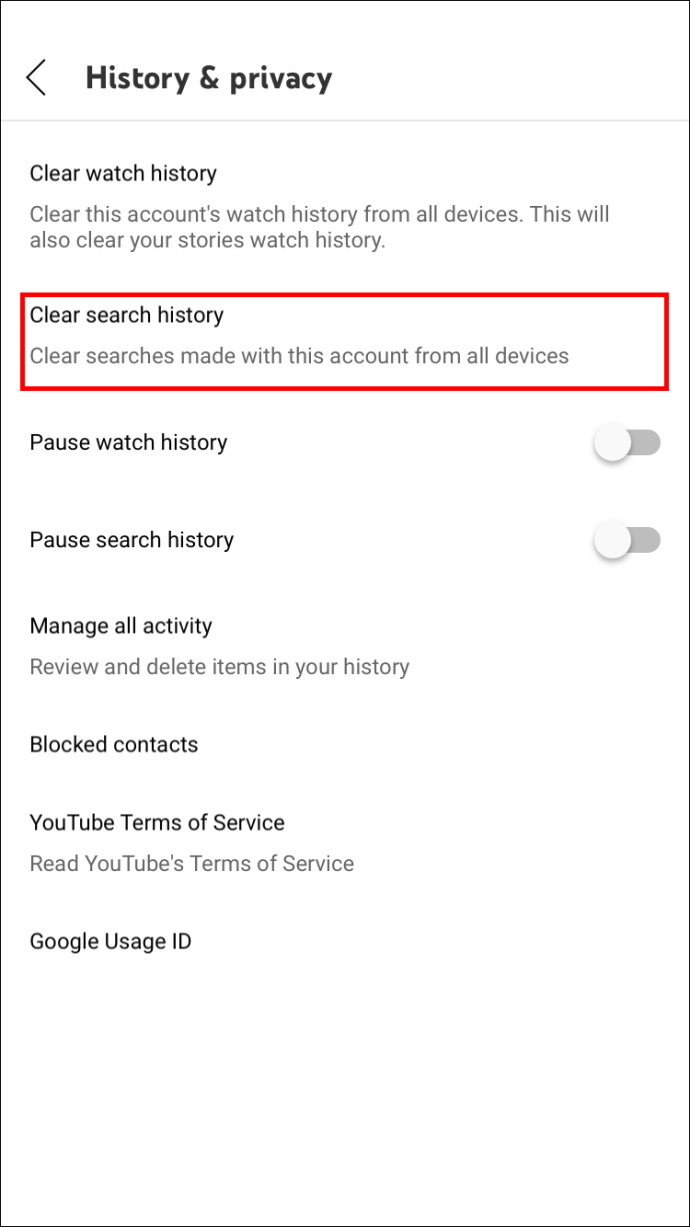
Sometimes, the app doesn’t register these changes, though it rarely happens. It’s also possible to set up automatic YouTube History deletions, which clear ancient data. Doing so can keep your recommendations fresh and closer to your current interests.
There’s also another way that allows you to delete history precisely.
- Launch the YouTube app on your iPhone.
- Select the profile picture located at the top-right corner.
- Tap on “Your Data In YouTube” in the menu that pops up.
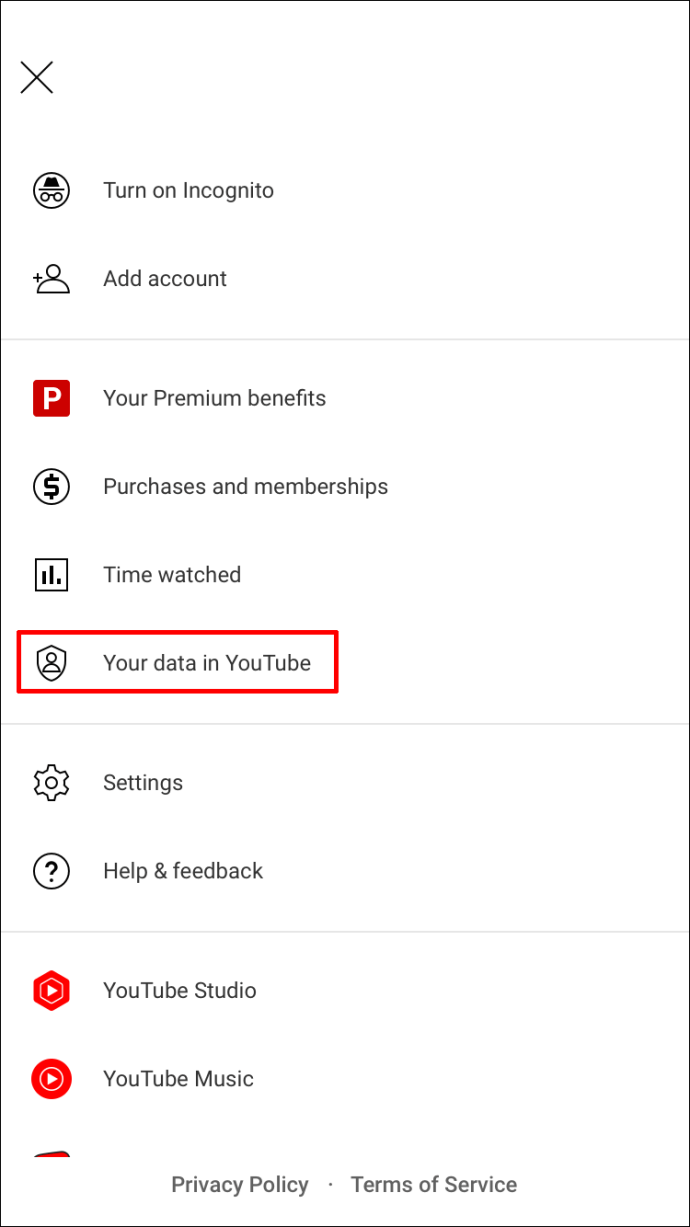
- Scroll and look for “YouTube Search History.”
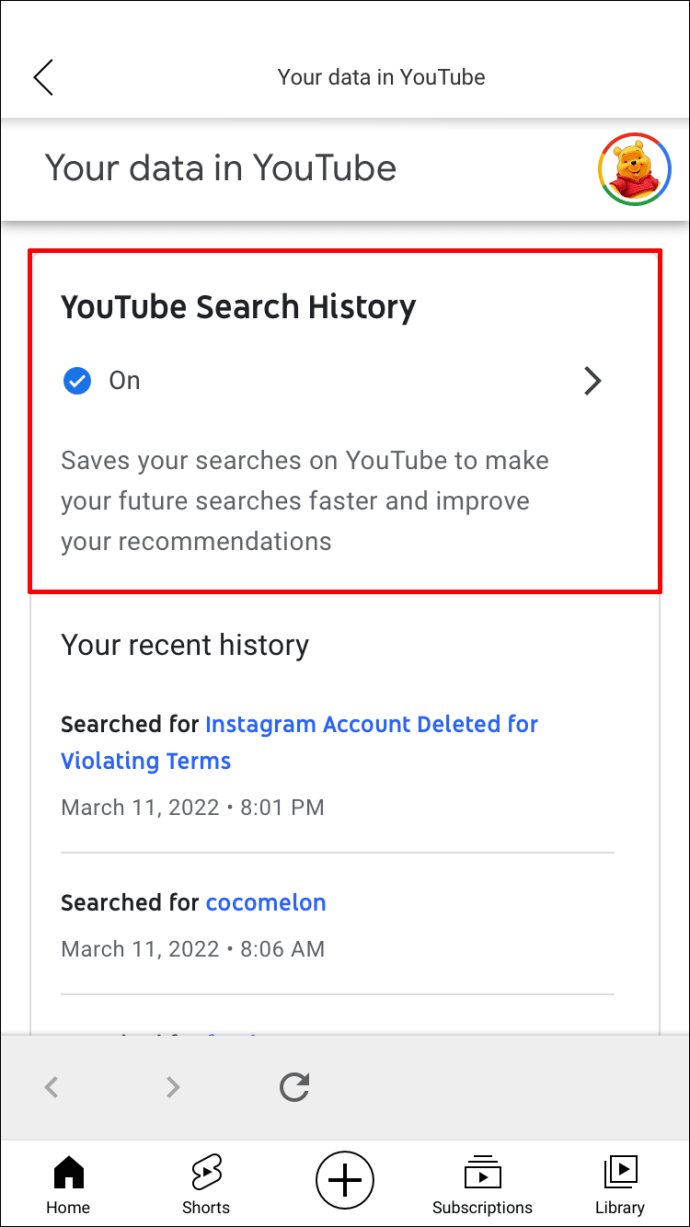
- Pick “Manage Your YouTube Search History.”
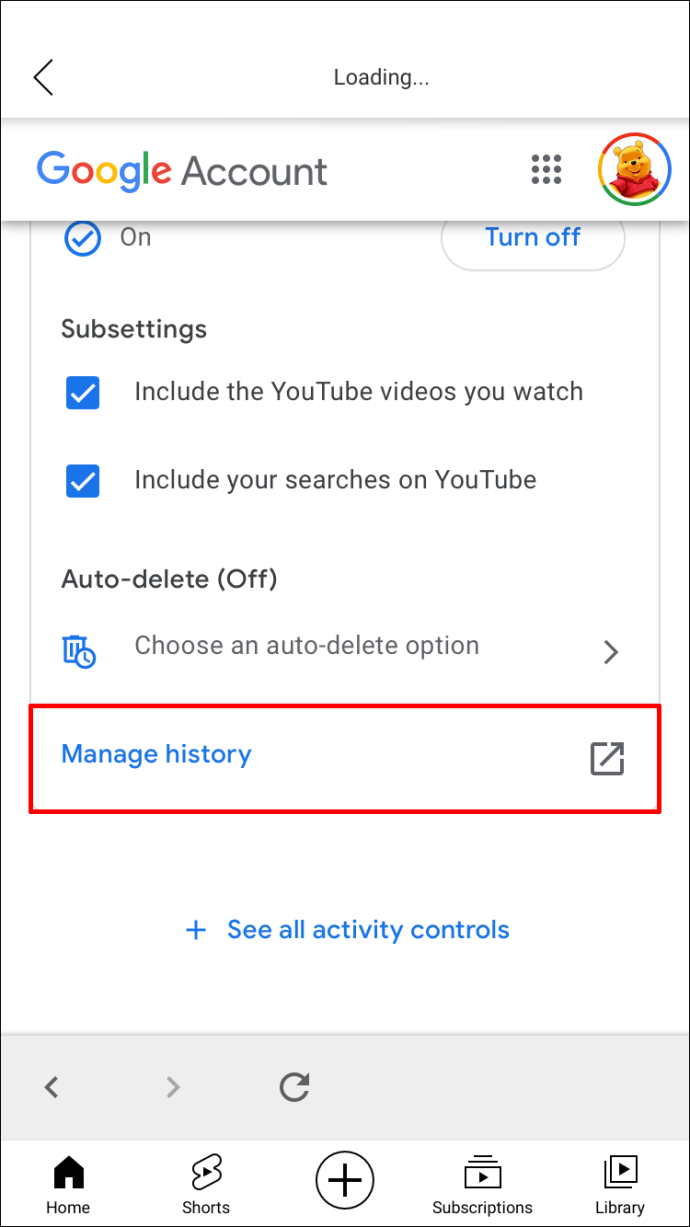
- Tap on “Delete” under “Search Your Activity.”
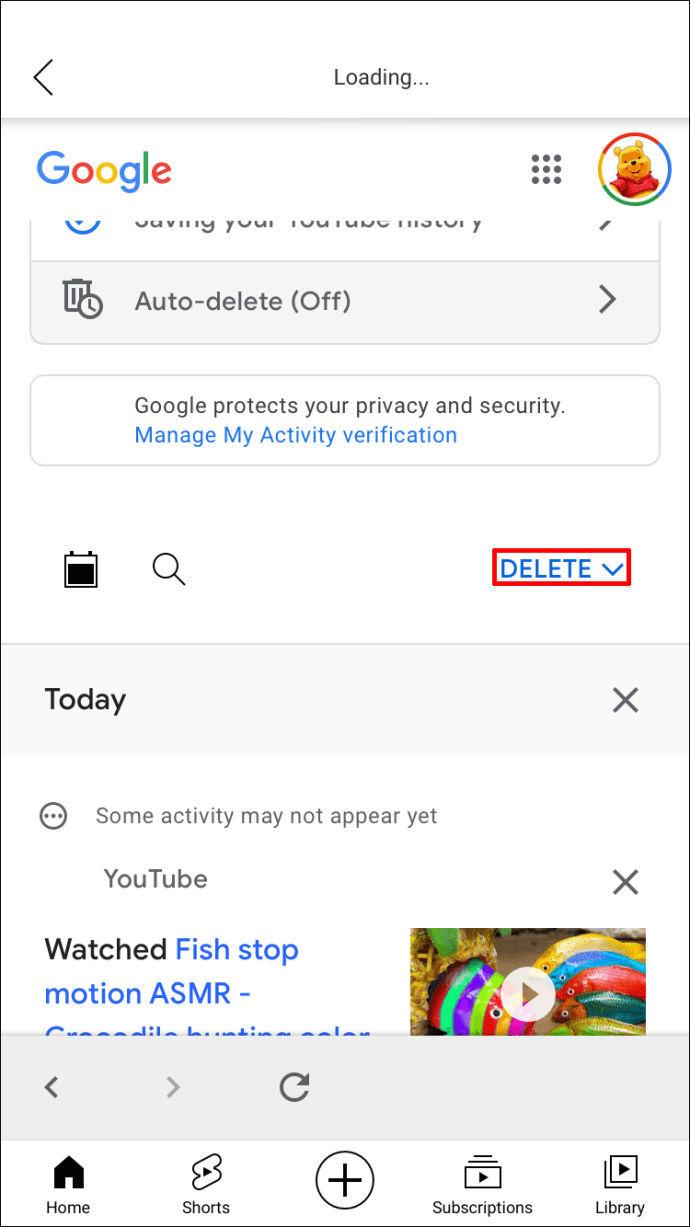
- From the list of options, choose “All Time.”
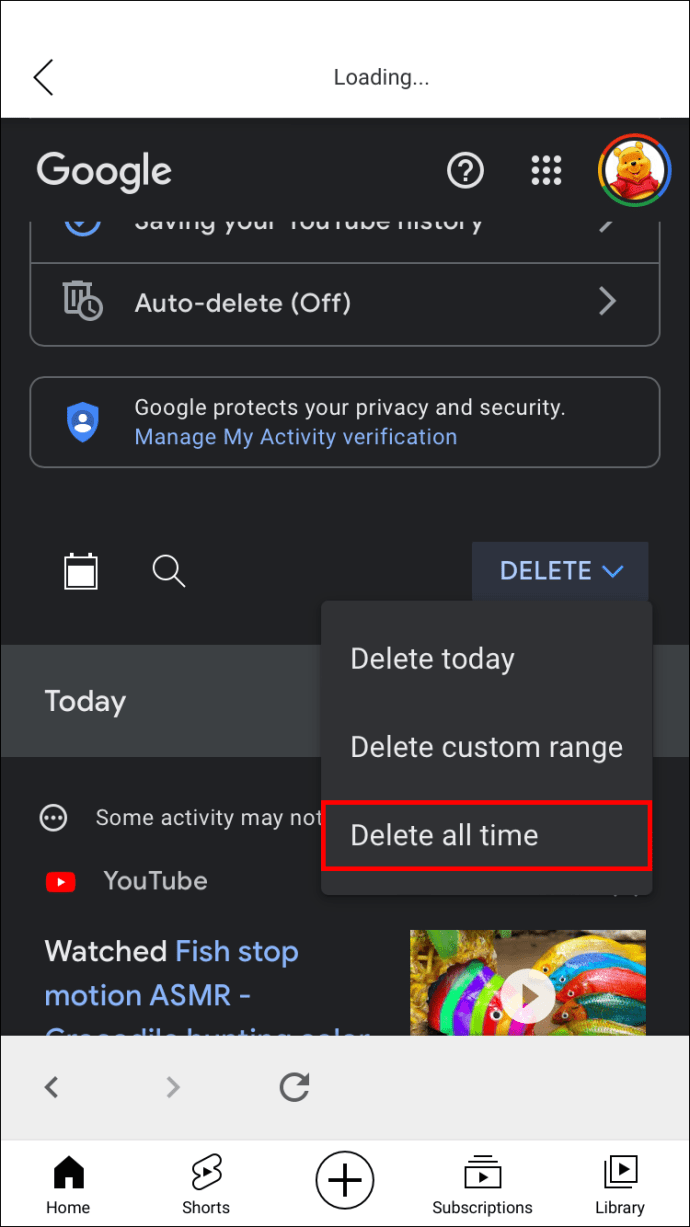
- Wait for the process to complete.
- You may have to wait as YouTube needs time to reset the recommendations.
When you’re picking a timeframe, there are more options.
- Last hour
- Last day
- Custom range
These let you clear a portion of your YouTube History, which is handy if you don’t want to see videos that don’t align with your interests. Someone else searching for and watching them will automatically skew the recommendations towards the new content.
The same steps can also work for your watch history, which is above the option for search history.
After performing the steps above, you can take an additional action, mainly if you only deleted a portion of the data. You can pause your YouTube History, which prevents others watching videos on your account from manipulating your recommended videos.
- Open YouTube on your iPhone.
- Tap on your profile picture.
- Select “Settings.”
- Scroll down and look for “History & Privacy.”
- Turn on “Pause Watch History”.
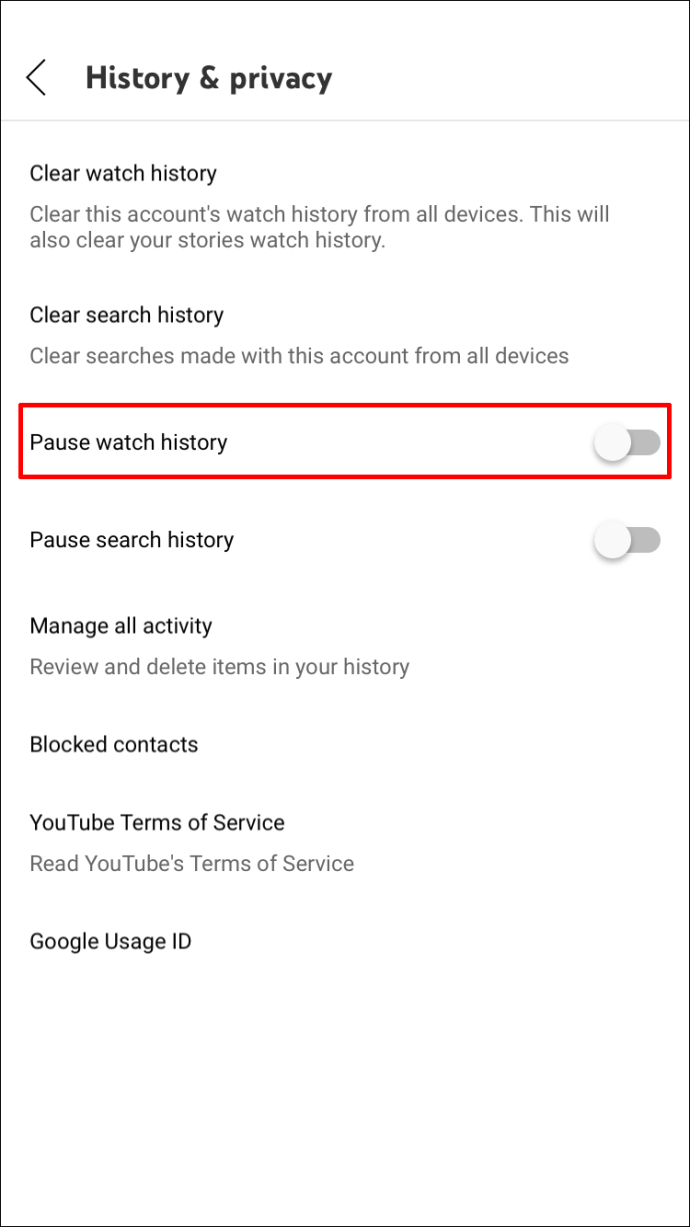
- From now on, YouTube is more reliant on older search results and videos watched for recommendations.
You can easily change these settings at any time, as it may be in your best interest to do so later on.
YouTube also bases recommendations on your liked videos and those inside playlists you create. Therefore, a completely clean reset is impossible even if you perform all of these steps. However, it still manages to remove older recommendations you don’t like.
How to Reset YouTube Recommendations on an Android
Both mobile versions of YouTube function identically, meaning you can follow similar steps as seen above. You can also pause your history on an Android phone as you would on an iPhone.
Follow these steps on your Android phone to reset your YouTube recommendations.
- Launch the YouTube app.
- Tap on your profile image located at the top-right corner.
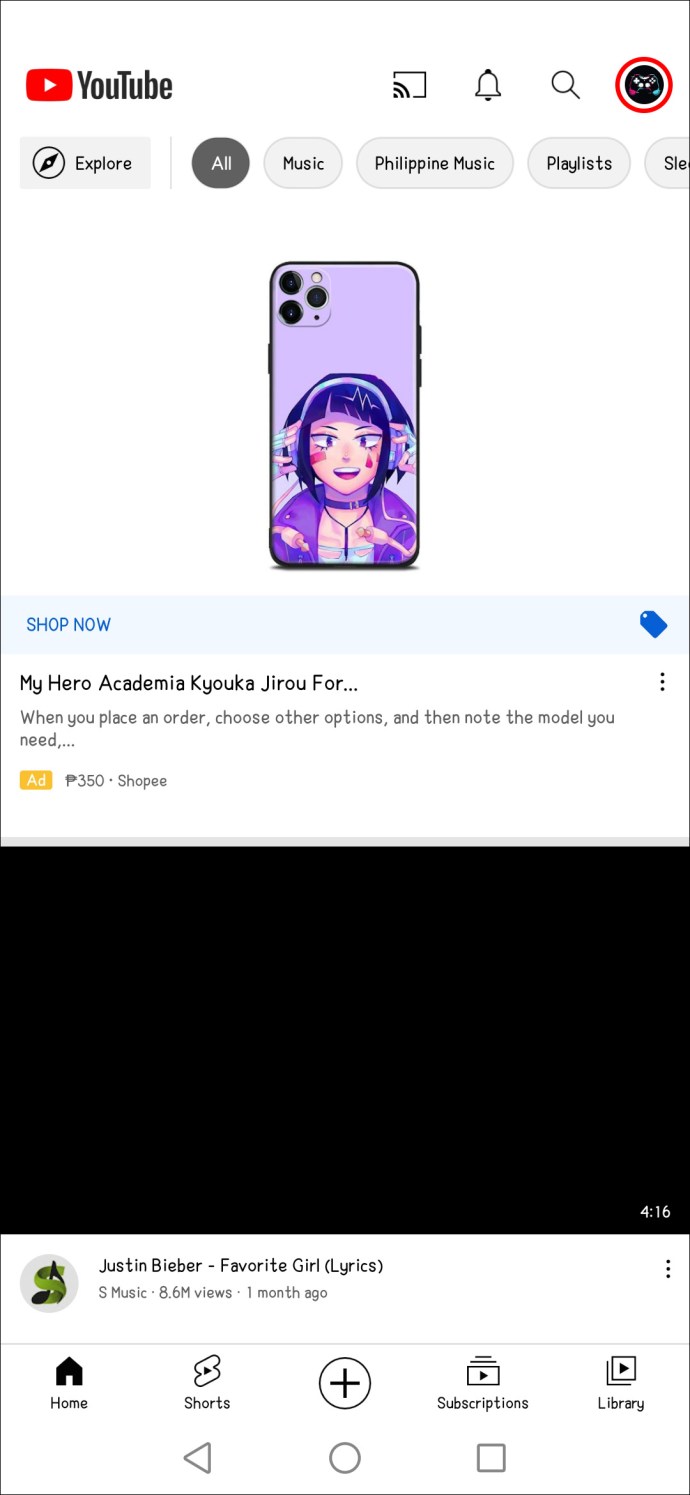
- Pick “Settings.”
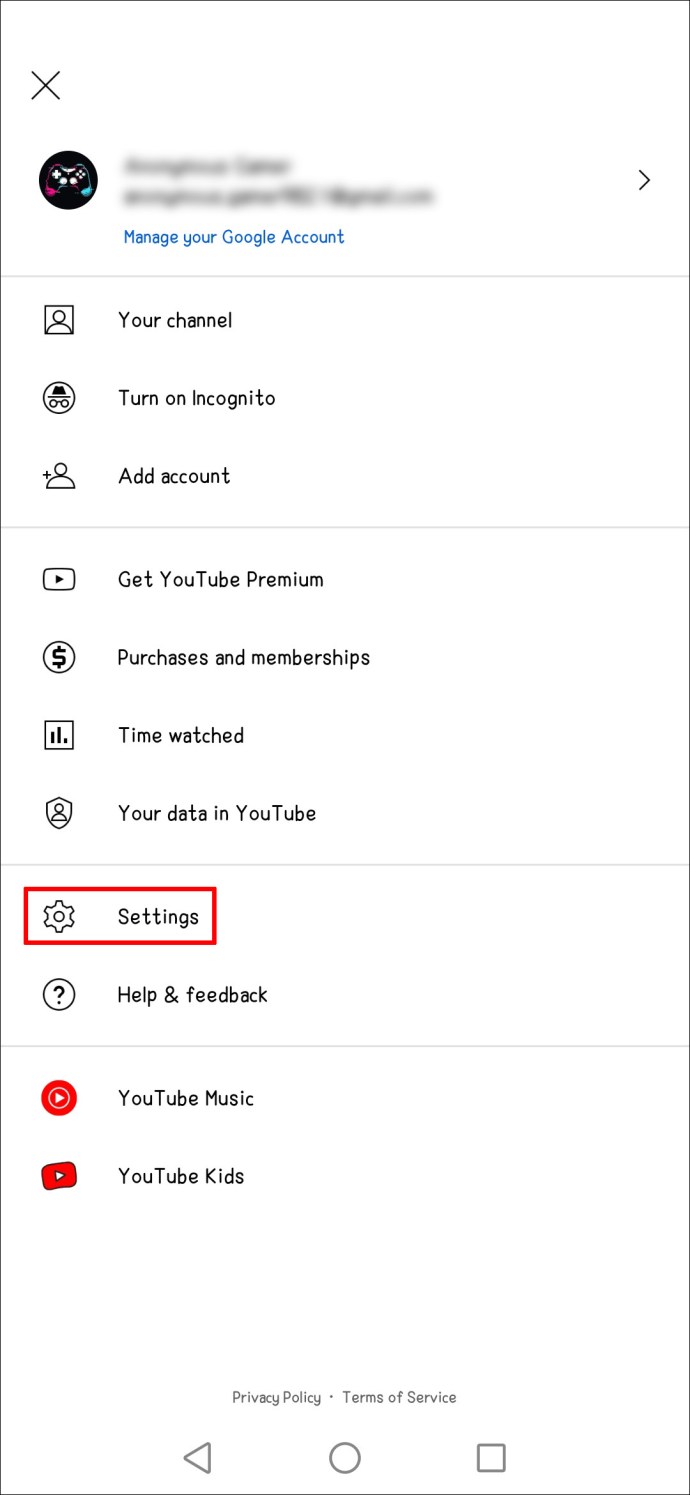
- Look for “History & Privacy.”
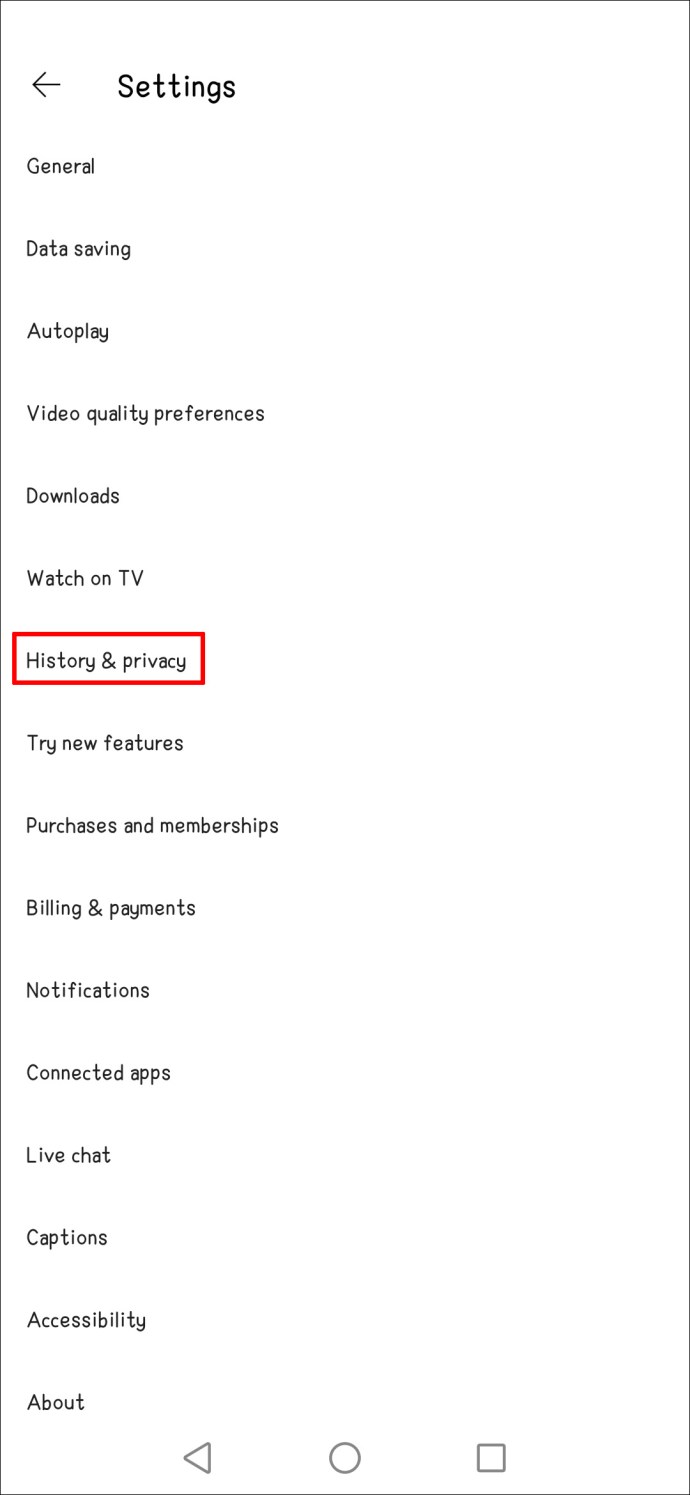
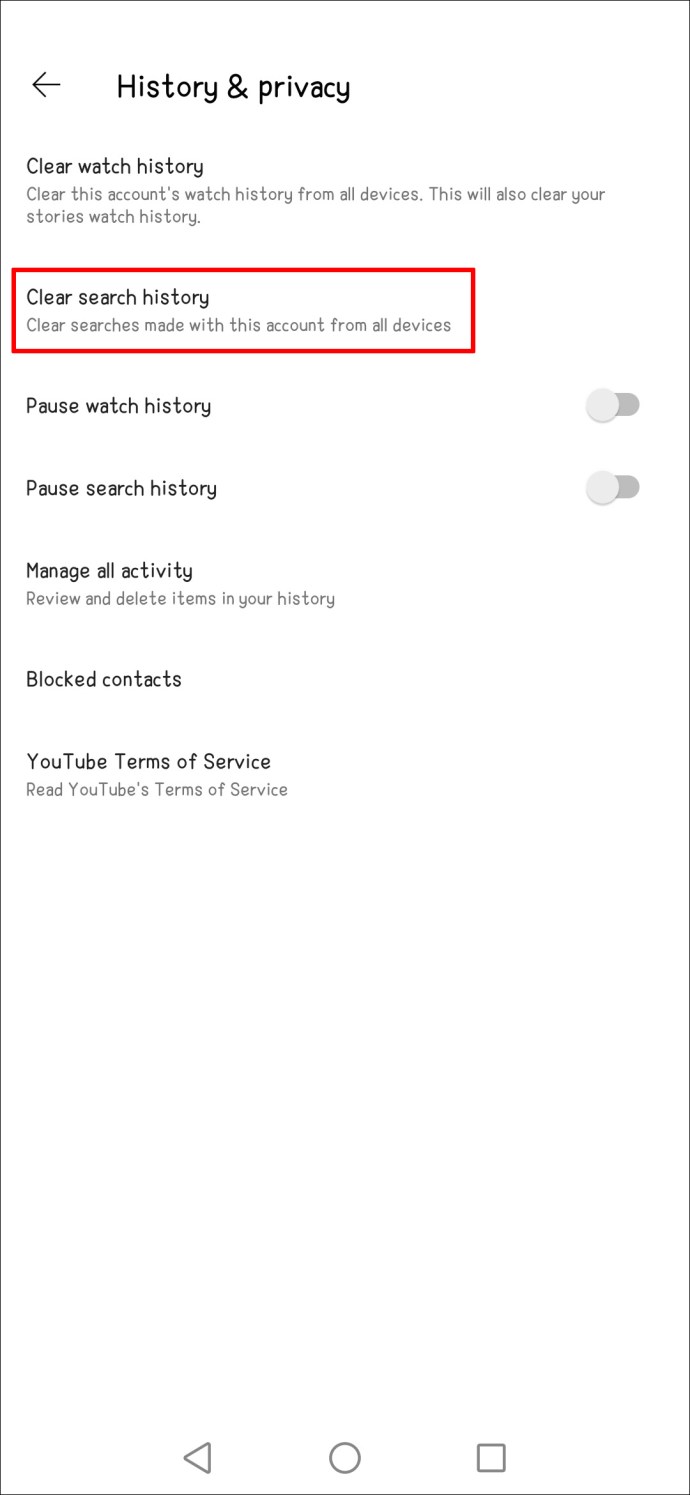
- Select “Clear Search History.”
The second method also works on Android.
- Open YouTube for Android.
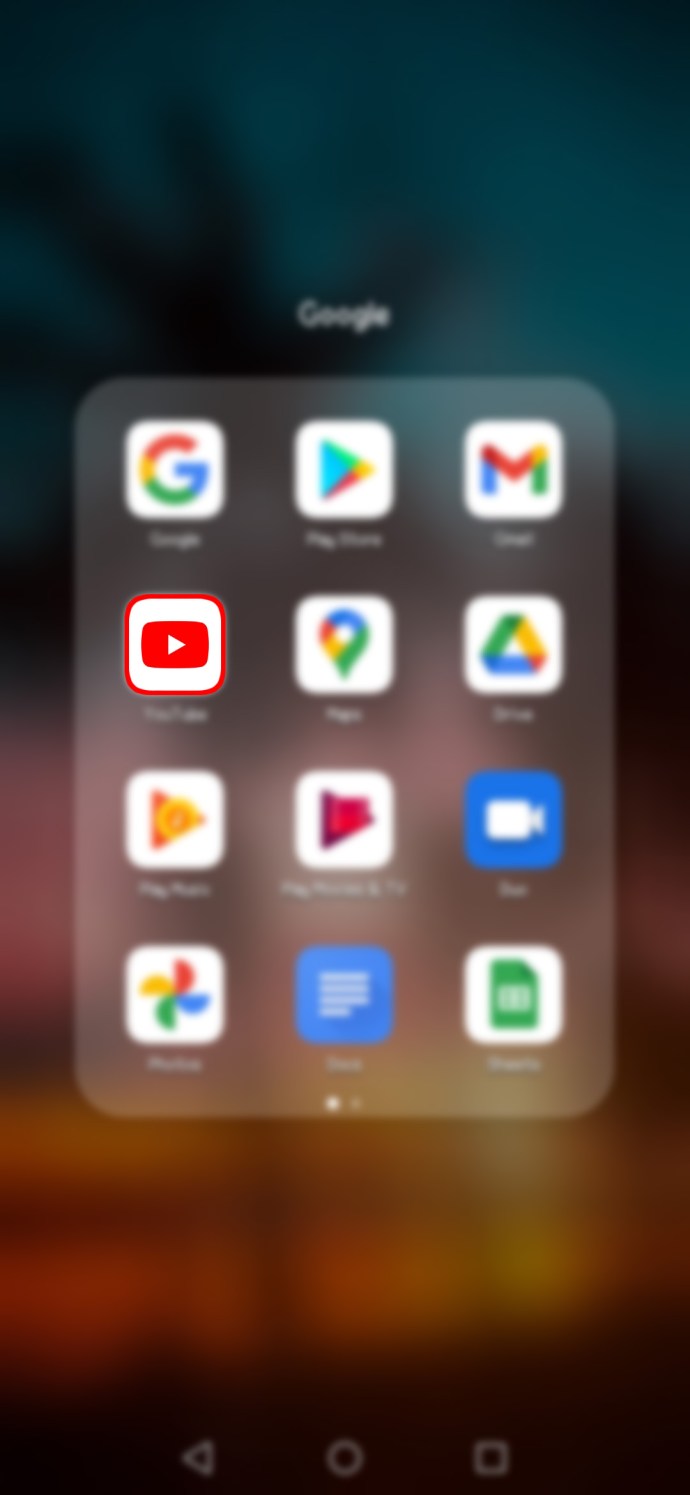
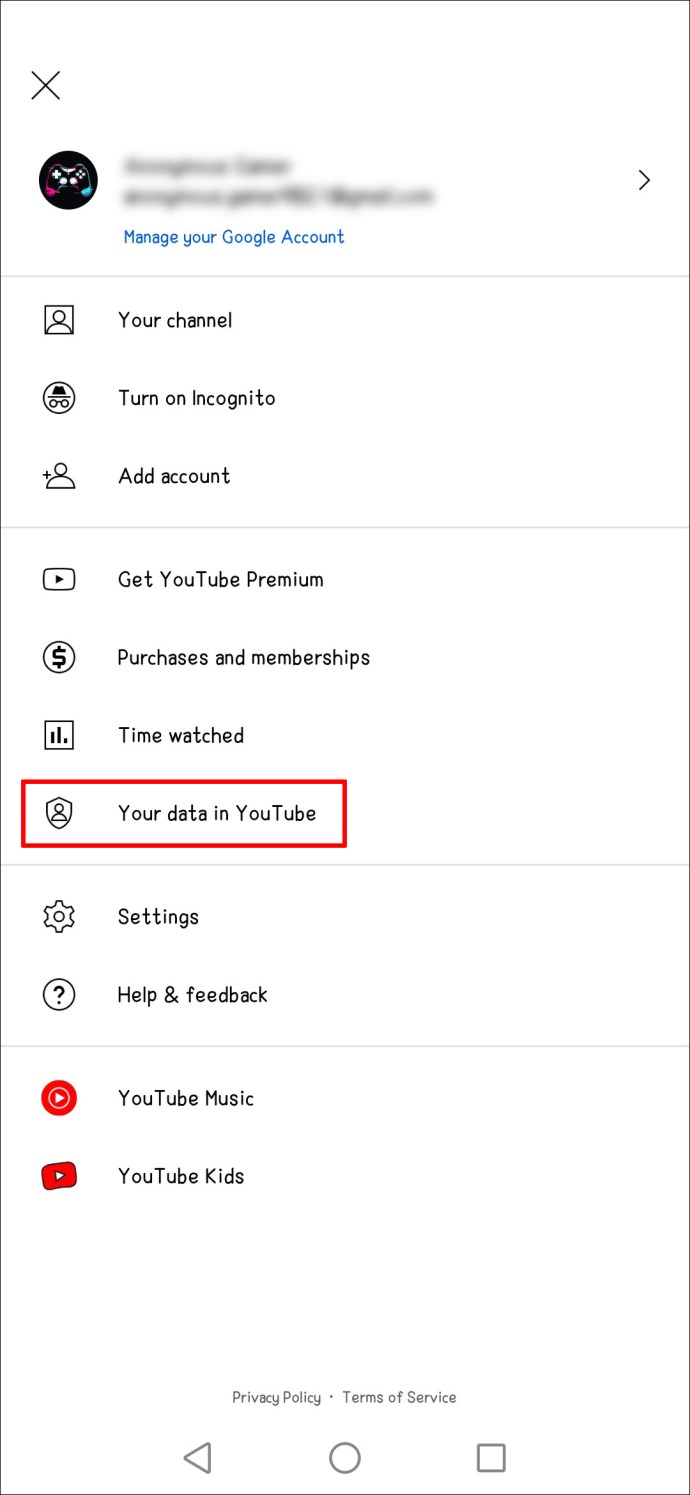
- Tap on your profile picture.
- Select “Your Data In YouTube” in the menu that pops up.
- Scroll and look for “YouTube Search History.”
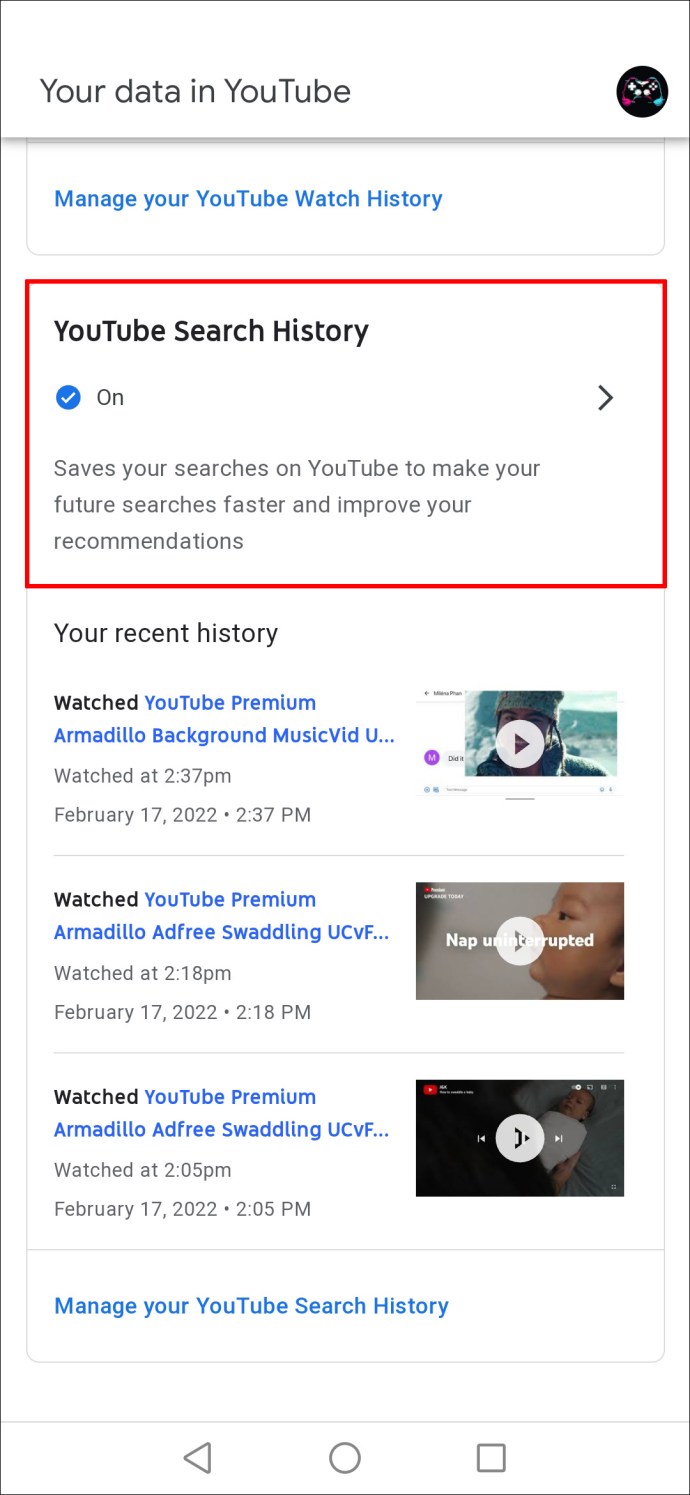
- Pick “Manage Your YouTube Search History.”
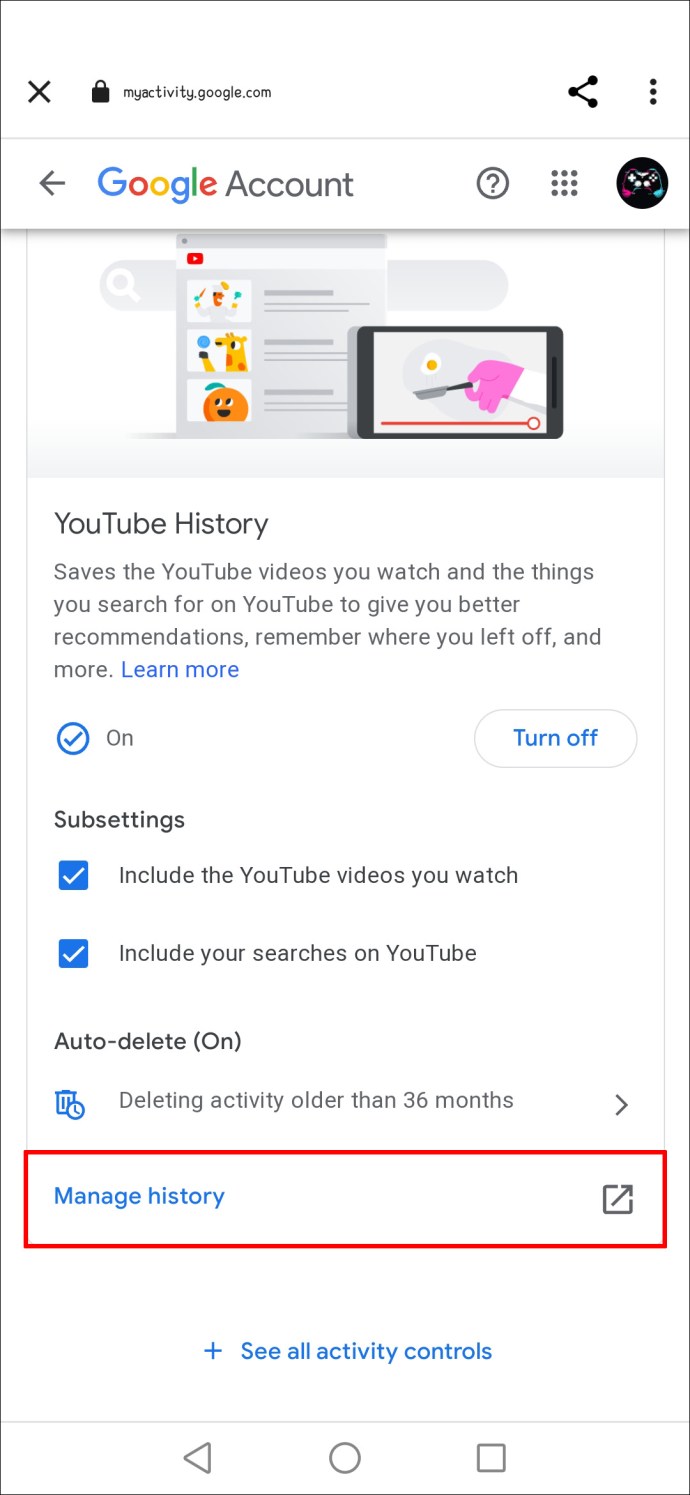
- Tap on “Delete” under “Search Your Activity.”
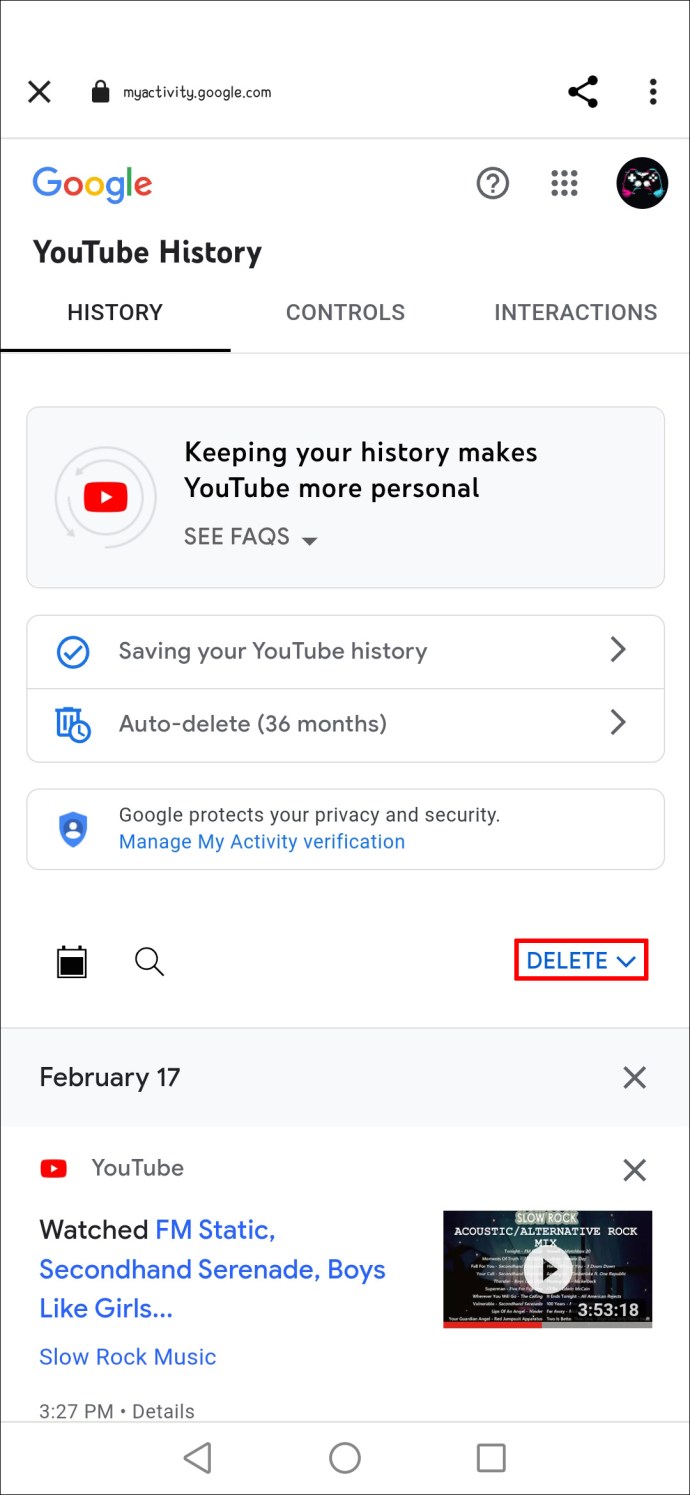
- From the list of options, choose “All Time.”
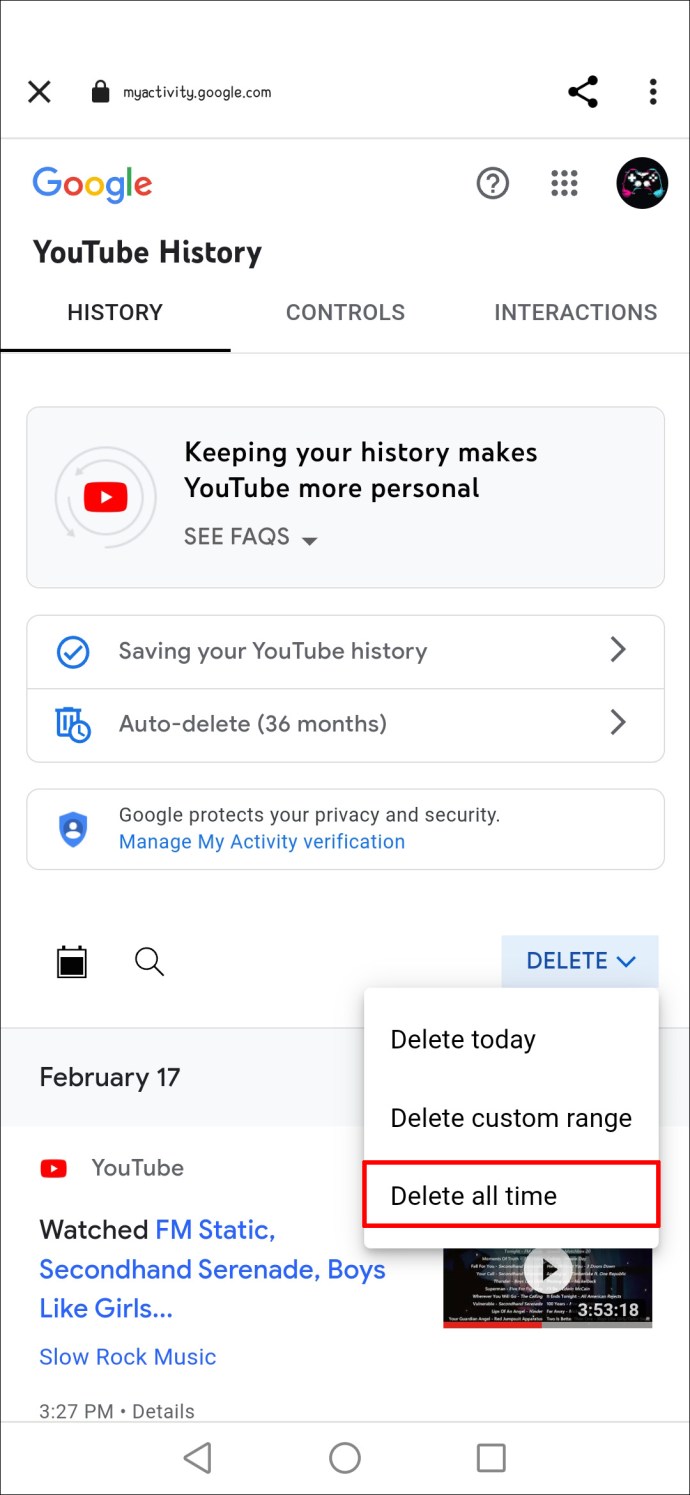
- Repeat Steps 5 to 7 for your watch history.
- Wait for the process to complete.
- You may have to wait as YouTube needs time to reset the recommendations.
To pause your watch history on Android, try these instructions.
- Open YouTube on your Android device.
- Tap on your profile picture.
- Pick “Settings.”
- Navigate to “History & Privacy.”
- Turn on “Pause Watch History”.
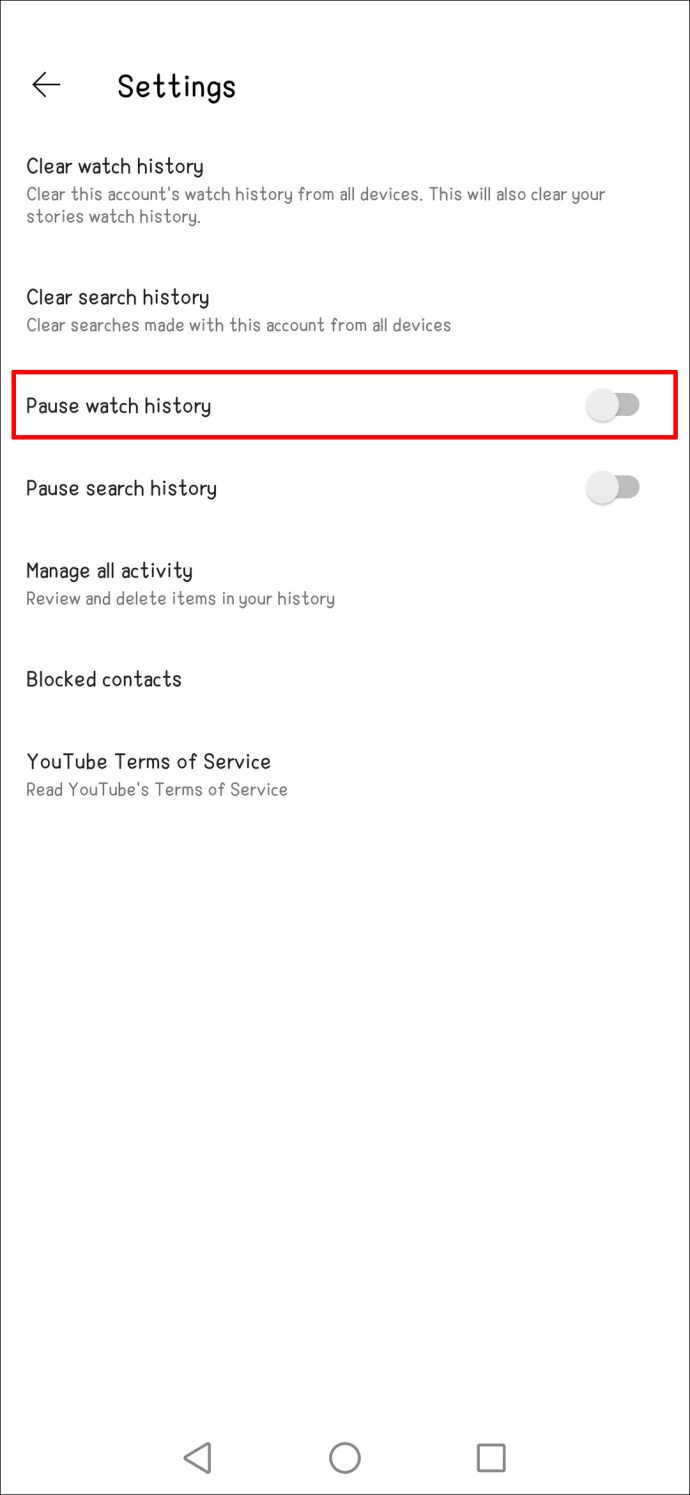
After going through these steps, your recommendations will reset after some time. Some patience is necessary, as the changes don’t surface immediately. You can also terminate the app while you’re waiting.
How to Reset YouTube Recommendations on a PC
Navigating through menus is much easier on a PC, and you can perform a recommendations reset easily. The steps are surprisingly similar to those on mobile devices. This decision shows that Google is set on providing a familiar experience on all common devices.
Here’s how to delete your search and watch history.
- Open YouTube in a new tab on your Internet browser.
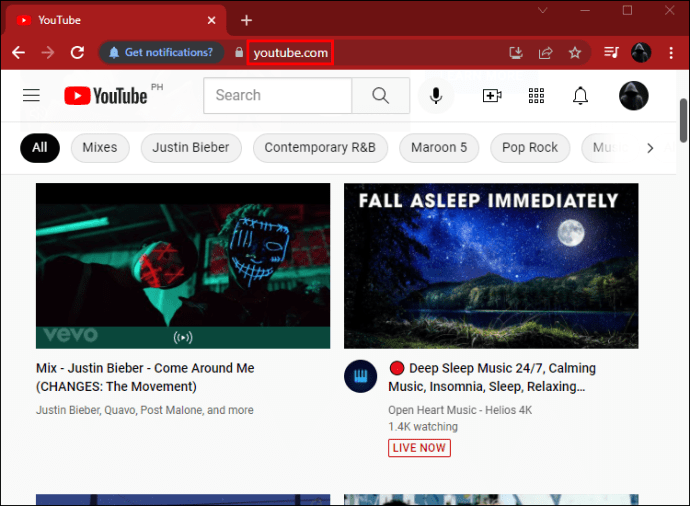
- Click on your profile picture at the top-right corner.
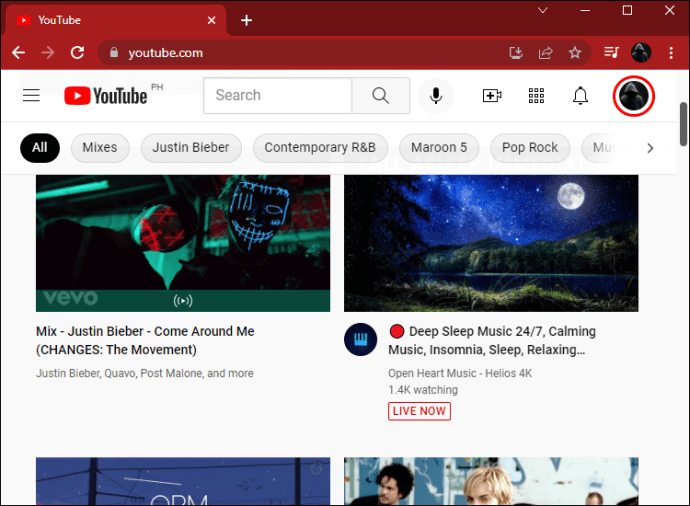
- Select “Your Data On YouTube.”
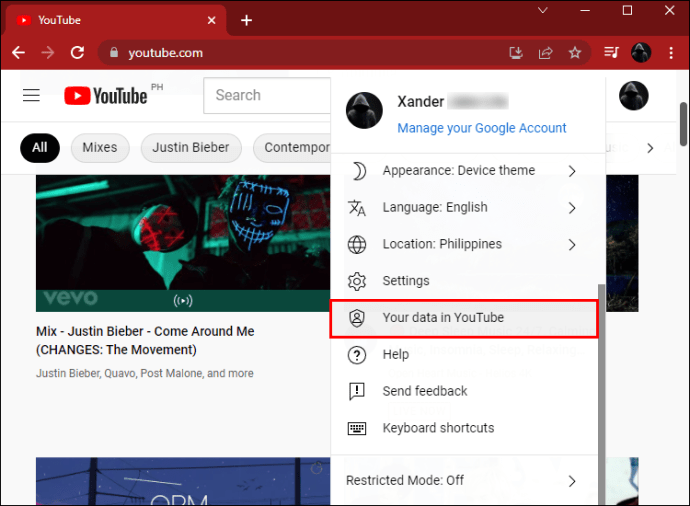
- Scroll down and locate “YouTube Search History.”
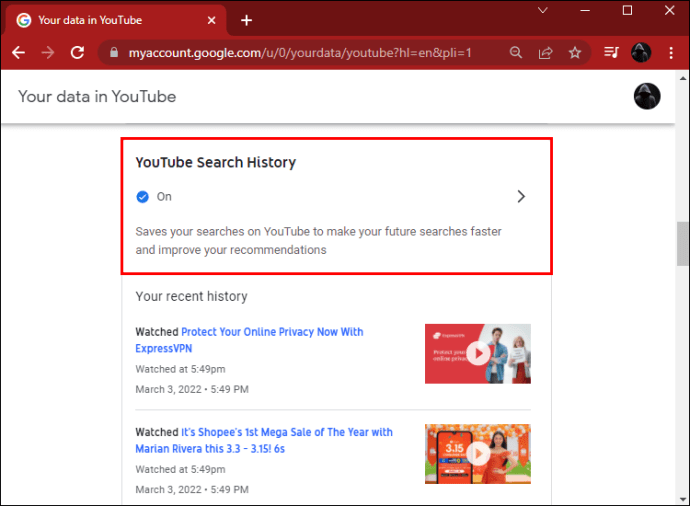
- Click “Manage Your YouTube Search History.”
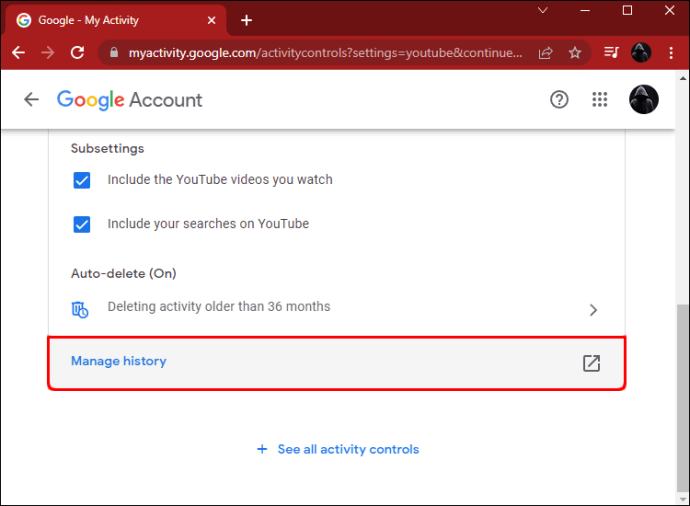
- Choose “Delete” under “Search Your Activity.”
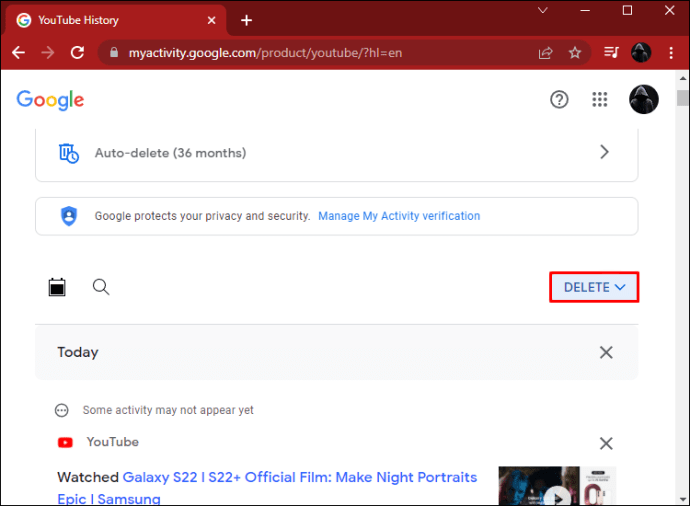
- Choose “All Time” or another setting.
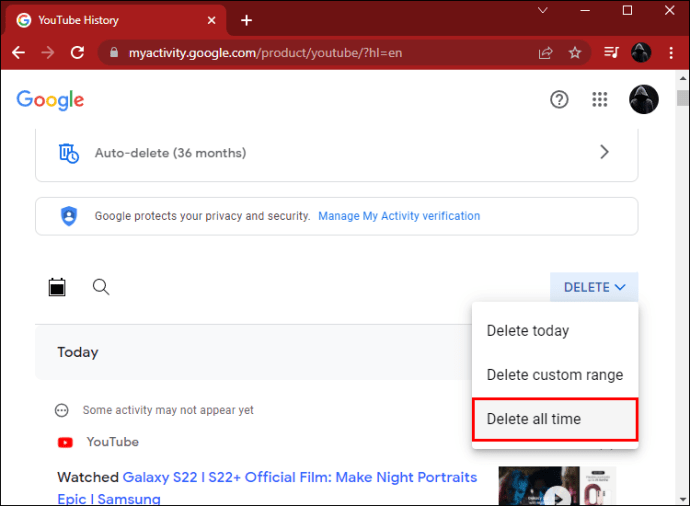
- Repeat Steps 5 to 7 for your watch history.
- Wait for the process to complete.
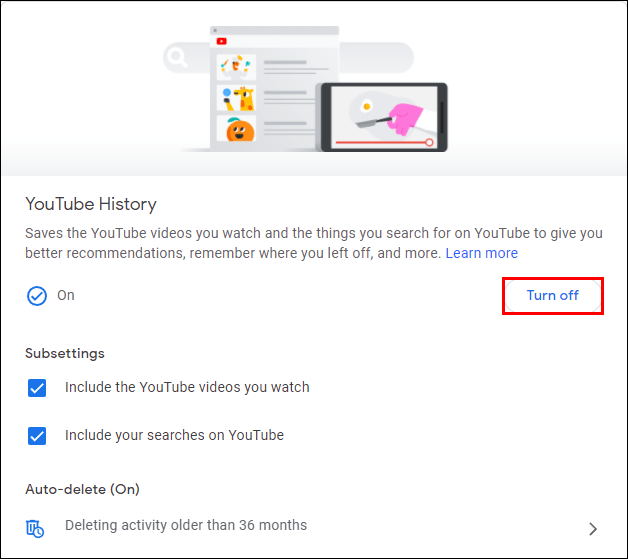
After that, you can also pause your search and watch history.
- Perform all steps above until you reach Step 4.
- Click on the button to turn off your YouTube search history.
- Go back and select the option to clear YouTube watch history.
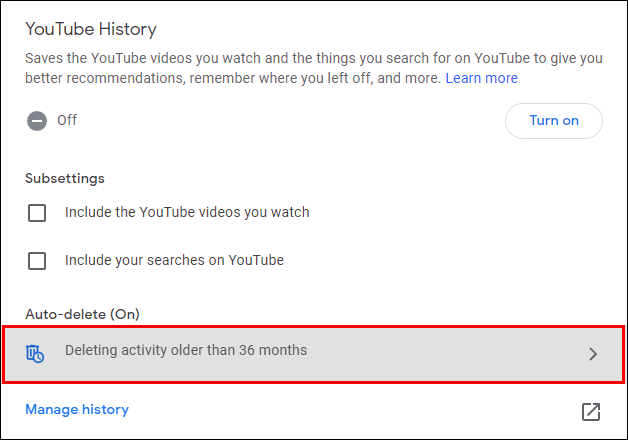
- Repeat Step 2.
- From now on, your YouTube History is all paused.
How to Reset YouTube Recommendations on a Smart TV
The instructions below will also work for TV sets, as they use a similar build of YouTube. Even gaming console users can use these steps.
- Open the YouTube software on your smart TV.

- Use the remote control or game controller to navigate to your profile picture.
- Select “Clear Search History.”
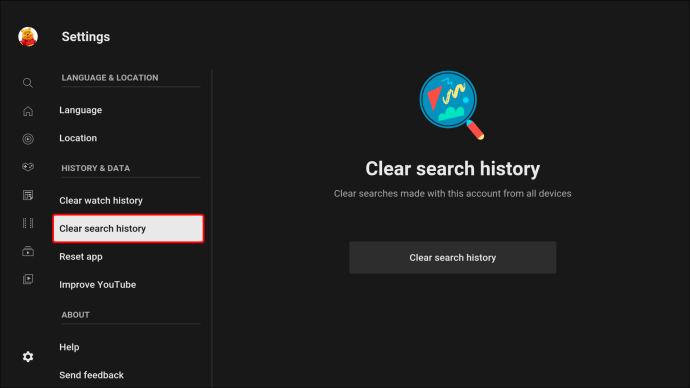
- Repeat for the YouTube watch history.
A New Start
YouTube constantly gathers data from your watching habits, likes, and subscriptions. It’s possible to prevent others from “polluting” the recommendation pool, but you’ll have to use the steps above for the best results. However, the algorithm also recommends random videos from time to time, boosting them to viral status.
Do you think the recommendations are helpful when you’re bored? What do you think about the YouTube algorithms? Let us know in the comments section below.


