
News
Apple explains iOS 16.1 clean energy charging in detail: Get nearby energy network forecasts and learn user habits

Naija Tech News on October 25th publish that, Apple explains iOS 16.1 clean energy charging in detail: Get nearby energy network forecasts and learn user habits, Apple’s official version of iOS 16.1 was released, adding support for clean energy charging options, designed to allow iPhone users to reduce their carbon footprint. Clean energy charging selectively charges when electricity with low carbon emissions is available, catering to those users who wish to adopt a more environmentally friendly charging method.
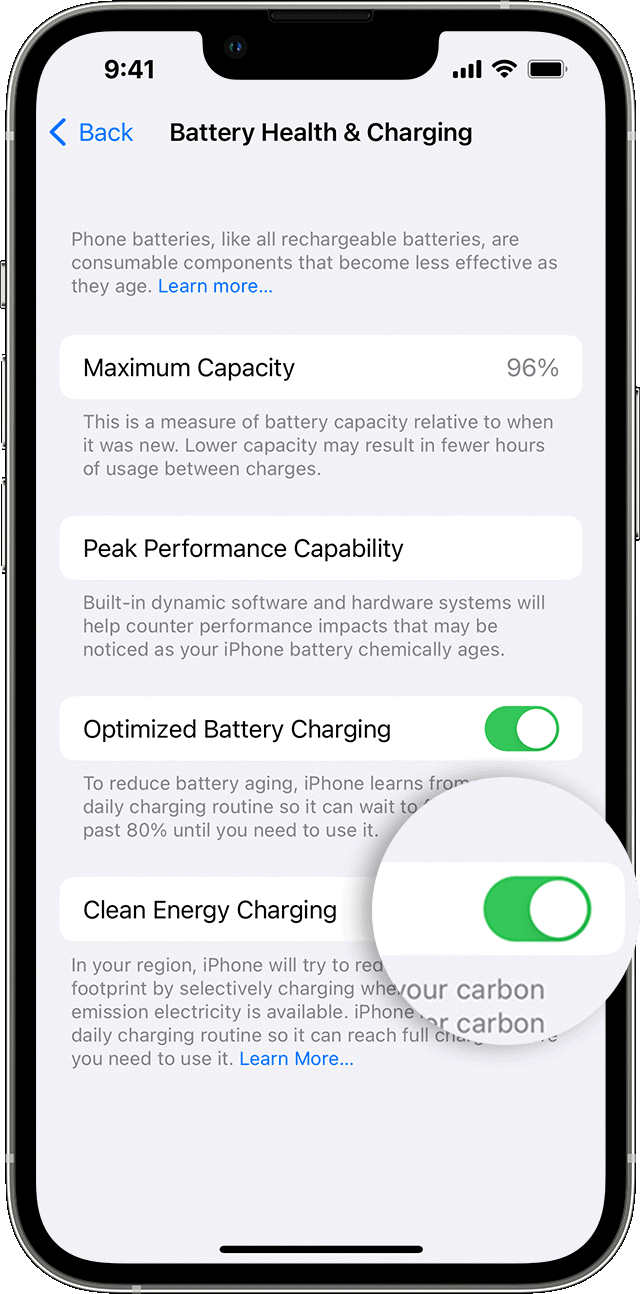
Apple today released a supporting document on Clean Energy Charging , providing more specific details on how it works, how to disable it if necessary, and what settings need to be activated for it to work.
Clean Energy Charging is limited to the U.S. region and requires Location Services, System Customization, and Important Locations to be enabled in the System Services section of the Settings app in order to function.
Naija Tech News has learned that it’s on by default, and those who want to turn it off will need to do so by going to Settings > Battery > Battery Health and Charging.
When enabled, Clean Energy Charging allows iPhone to obtain a forecast of carbon emissions from nearby energy grids, which can be used to charge iPhone during periods of clean energy production .
Apple says Clean Energy Charging works with optimized battery charging, learning from the user’s habits and only kicking in when the iPhone is charging for an extended period of time, such as at home or at work. It won’t engage if charging habits aren’t fixed, or when the user is in a new location, like traveling.
When clean energy charging is turned off for charging, a notification on the lock screen provides details on when the iPhone is fully charged, similar to optimizing battery charging. Touch and hold the notification and an option to “Charge Now” will appear, setting your iPhone to fully charge.
RECOMMENDED READS
- By Next year, Google Chrome 110 browser will stop supporting Win7/8.1
- Apple Safari 16.1 adds support for passkeys, web notifications, Pencil hover experience
- Apple iOS / iPadOS 16.1 official version released: iCloud shared photo library, third-party App real-time activities online, massive content updates
- Pure installation, Microsoft Win11 Build 25227 preview version ISO official image download
- WhatsApp Premium Features Now Rolling Out


