Guides
Best IPTV Service and VPNs for Live TV Streaming

welcome to our exploration of finding the ultimate IPTV service tailored for live TV streaming on your phone. I’m pretty sure that most of you enjoyed the Zola TV app before the server ran out of space. Here is another fantabulous one for you to Watch Live TV channels with over 10,000+ stations like DStv, Sky, BT, and beIN channels to the expansive library of content including Netflix, Amazon Prime, Apple TV+, we’ll leave no stone unturned in our quest for the best IPTV service.
This means you are not restricted to DStv channels alone, since you can also watch other premium cable TV channels for free and have access to an infinite number of TV stations. You can even set up profiles for quick access.
For most individuals, especially those in Africa, Europe, and other English-speaking nations, watching the premier league or other sports leagues in Arabic or other languages is a pain. With this Best IPTV Service, you’re covered, so don’t worry.
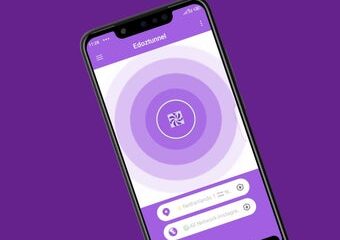
The app in hand is named “IPTV Stalker.” JoshDstv and StbEmu Pro are comparable ones that you can also use, but I’m confident that you’ll prefer this because of its speed and flexibility.
You can access VOD content from regions including the UK, USA, China, India, South Africa, Spain, Egypt, Ghana, Nigeria, and many more using the IPTV Stalker app. You can also watch soap operas, sports, music videos, live events, movies, pornographic videos, and many other types of content.
Features of IPTV Stalker Pro Player (Premium Live TV Hacked)
- Access to all DTV bouquets without restriction (Channels)
- Well-compressed streaming with HD streams little data usage
- No subscription is required (Free Lifetime streaming)
- No Ads (Premium)
- All countries supported
- Unlocked for all cable TV stations and channels
- EPG is supported
- Password protection
- Multiplayer (support live DSTV channels, TV series, movies, etc.)
Setup Guide on Android Smartphones
Please carefully follow these instructions to watch DSTV and other Cable subscription TV channels on your mobile or Android TV for free;
- To start, click this link to download and install the IPTV Stalker Modded app for Android devices.
- Open the app, and the IPTV subscription page will pop up.
- Now we need to create a profile. Enter “Shelaf or DStv Africa” in the “Nickname for IPTV” field.
- In the “Portal URL”, input the portal URL listed below, e.g. http://51.159.70.234/stalker_portal/c/
- In the field of “MAC- Address”, input any of the MAC addresses we listed below on this post e.g 00:1A:79:50:10:BA

- Afterward, press the “Save” button. You will receive your channels list on your player if your submitted information is accurate.
- Remember that you can have many profiles; all you need to do is choose the one you want to use and wait for the channels to load.
To watch TV Stations, right on the first loaded page, which is the “Favorites” page, you need to click the “Home” button, and scroll to “LIVE TV” through the “LEFT” or “RIGHT”. Other items will be displayed for you to view, such as the Video club, Series club, and Settings. Check everything to have a better understanding.
Take note: To secure your personal information when using IPTV players and providers, use a VPN. Some IPTV platforms may track user information and keep online records. You can easily spoof your geolocation and conceal your IP address with a VPN. We advise using strong VPNs.
The Ideal VPNs for IPTV players
Embark on a journey with the top VPN providers that have proven their mettle in unblocking content and ensuring uninterrupted streaming:
1. NordVPN: Your gateway to the UK server experience.
3. CyberGhost: Multiple server options to meet your viewing needs.
3. Surfshark: Seamlessly unblock from anywhere in the world.
Active IPTV Stalker Player Profile Settings
The best IPTV Stalker Player setup for your profile is listed below:
| Portal URL: http://51.159.70.234/stalker_portal/c/ | |
|---|---|
| Mac Address | Expiry Date |
| 00:1A:79:50:10:BA | November 9, 2024 |
| Portal URL: http://portal.magic8kip.tv:80/c/ | |
| Mac Address | Expiry Date |
| 00:1A:79:c6:20:7d | June 28, 2024 |
| 00:1A:79:6f:8d:31 | May 3, 2024 |
| 00:1A:79:d5:5f:d3 | July 4, 2024 |
| 00:1A:79:53:98:08 | October 15, 2024 |
| 00:1A:79:17:05:da | May 24, 2024 |
| 00:1A:79:6c:82:06 | August 15, 2024 |
| 00:1A:79:a2:5b:b8 | October 16, 2024 |
| 00:1A:79:d0:84:38 | September 19, 2024 |
| 00:1A:79:e6:01:f4 | January 19, 2024 |
| 00:1A:79:aa:c5:de | February 26, 2024 |
| 00:1A:79:f5:11:b7 | June 6, 2024 |
| 00:1A:79:5b:45:db | January 13, 2024 |
| 00:1A:79:b8:2b:a8 | March 25, 2024 |
| 00:1A:79:e6:ad:fc | February 5, 2024 |
| 00:1A:79:f0:46:d7 | April 30, 2024 |
| 00:1A:79:c6:72:54 | May 25, 2024 |
| 00:1A:79:c5:79:4f | January 5, 2024 |
| 00:1A:79:fb:39:f5 | February 26, 2024 |
| 00:1A:79:42:bb:8f | October 16, 2024 |
| 00:1A:79:7c:10:7c | April 2, 2024 |
| 00:1A:79:e7:05:ef | February 25, 2024 |
| 00:1A:79:5a:03:4c | August 28, 2024 |
| 00:1A:79:43:a8:95 | May 27, 2024 |
| 00:1A:79:c8:48:f1 | August 26, 2024 |
| 00:1A:79:6c:c8:78 | September 14, 2024 |
| 00:1A:79:9f:a2:ab | March 19, 2024 |
| 00:1A:79:c8:4f:ea | May 31, 2024 |
| Portal URL: http://alexiptv.ddns.me:8080/c/ | |
| Mac Address | Expiry Date |
| 00:1a:79:a7:a7:be | March 2, 2024 |
| 00:1a:79:a3:9f:28 | February 20, 2024 |
| 00:1a:79:ad:50:3c | October 24, 2023 |
| 00:1a:79:ac:c2:98 | February 14, 2024 |
| 00:1a:79:ae:00:2d | February 15, 2024 |
| 00:1a:79:a3:f7:89 | February 9, 2024 |
| 00:1a:79:a3:14:6e | May 10, 2024 |
| 00:1a:79:a4:80:28 | January 12, 2024 |
| 00:1a:79:ad:54:b1 | August 29, 2024 |
| 00:1a:79:a6:70:44 | May 18, 2024 |
| 00:1a:79:a7:ec:c6 | August 14, 2024 |
| 00:1a:79:a2:b5:df | August 9, 2024 |
How to Create Multiple Profiles on IPTV Stalker Player
- Open the IPTV Stalker app.
- Right on the first loaded page, which is the “Favorites” page, you need to click the “Home” button, and scroll to “Settings” through the “LEFT” or “RIGHT”.
- Hip on the “IPTV Profiles” text.
- Tap on the “IPTV Profiles” icon to open the Profile page.
- Input any name in the “Nickname for IPTV” field.
- For the “Portal URL” and “Mac Address“, refer to the table above.
- Once done, press the “Save” button. You will receive your channels list on your player if your submitted information is accurate.
How to use IPTV Stalker Player on Android Smart TVs
I do not doubt that users of Smart TVs will benefit from this. Here is how to configure it.
- Download this modded version of IPTV Stalker Player to your Android Smart TV.
- Open Settings > Security settings on your Android Smart TV.
- Turn on the Install from “Unknown Sources“.
- Use a file browser to find the downloaded app folder.
- Right-click the Stalker Player.APK file and select Install.
- Open the app, and the subscription page will pop up.
- Now we need to create a profile. Enter “DStv Africa” in the “Nickname for IPTV” field.
- In the “Portal URL”, input the portal URL listed below, e.g http://51.159.70.234/stalker_portal/c/
- In the field of “MAC- Address”, input any of the MAC addresses we listed below on this post e.g 00:1A:79:50:10:BA
- Afterward, press the “Save” button. You will receive your channels list on your player if your submitted information is accurate.
Remember that you can have many profiles; all you need to do is choose the one you want to use and wait for the channels to load.
How to use IPTV Stalker Player on PC
- Download this modded version of IPTV Stalker Player to your computer.
- On your computer, open a web browser and go to www.bluestacks.com.
- To install the most recent version of the BlueStacks emulator on your computer, click the Download icon next to your operating system.
- Install the BlueStacks.exe or.dmg file on your computer.
- Enter your Google account login information to access BlueStacks.
- Select the “Install APK” option from the sidebar in BlueStacks.
- A new window will open once you click Install APK. You can find the APK file you want by navigating in the browse window. Click Open after selecting the “IPTV Stalker Player.APK” file.
- BlueStacks will install the chosen APK. On the home screen, the app icon will appear upon successful installation. From there, you can open the IPTV Stalker Player app.
- Open the app, and the IPTV subscription page will pop up.
- Now we need to create a profile. Enter “DStv Africa” in the “Nickname for IPTV” field.
- In the “Portal URL”, input the portal URL listed below, e.g. http://51.159.70.234/stalker_portal/c/
- In the field of “MAC- Address”, input any of the MAC addresses we listed below on this post e.g 00:1A:79:50:10:BA
- Afterward, press the “Save” button. You will receive your channels list on your player if your submitted information is accurate.
Remember that you can have many profiles; all you need to do is choose the one you want to use and wait for the channels to load.
What about the iOS users?
iPhone/iPad users can also purchase the StalkerTV on the App Store and use any of the above Portal URLs and Mac addresses to power it up.
Please leave a comment below if you need assistance with anything. You can also always check back on this thread to get the most recent and fastest IPTV access details if your profile settings stop functioning or expire.