
News
DIY: Reply To A Specific Message In Instagram


DIY: Reply To A Specific Message In Instagram. All major messaging apps allow users to respond directly to specific messages from one particular sender.
That’s useful as it can help you avoid confusion when responding to an older message—not the last one sent. This functionality can significantly help in group chats. Instagram was a bit late to roll out such a feature.
This article explains how to use the direct messaging feature and reply to specific messages from any sender on Instagram using iPhone, Android, or a PC. In addition, you’ll see why you may be unable to use the new feature.
How To Reply to a Specific Message in Instagram on the iPhone
To respond to a specific Instagram message in the list sent from someone while using an iPhone, do the following:
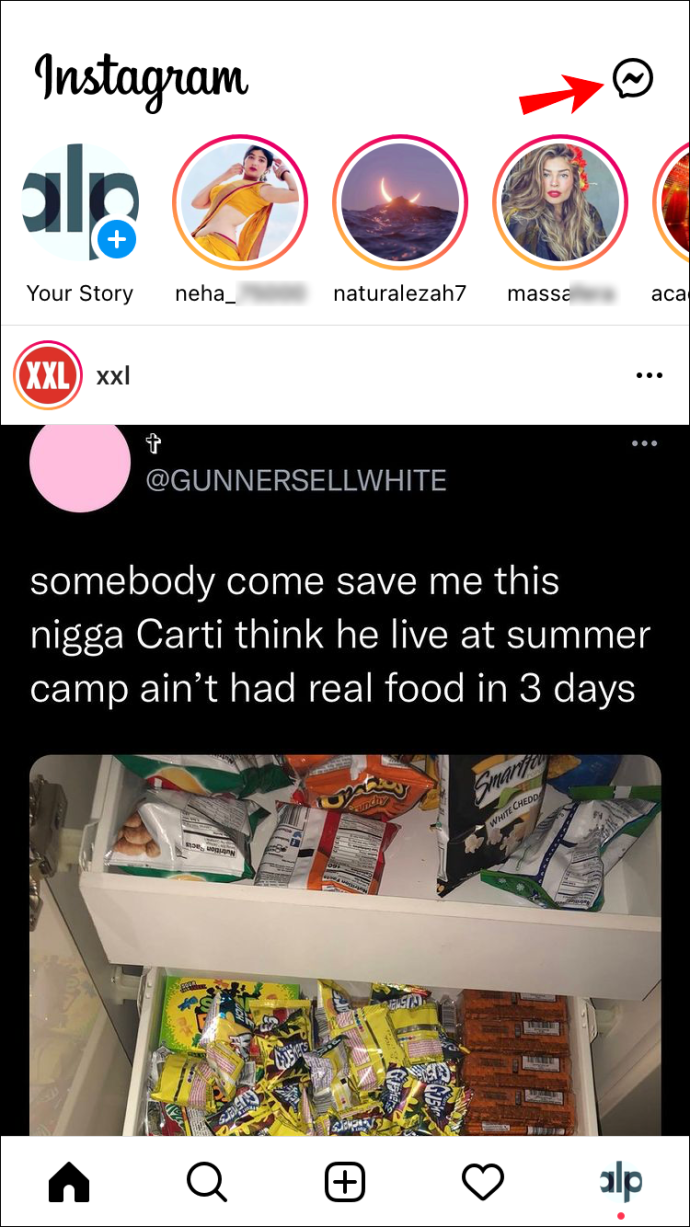
- From the feed, tap the messenger icon at the upper right corner of your screen to access messages.
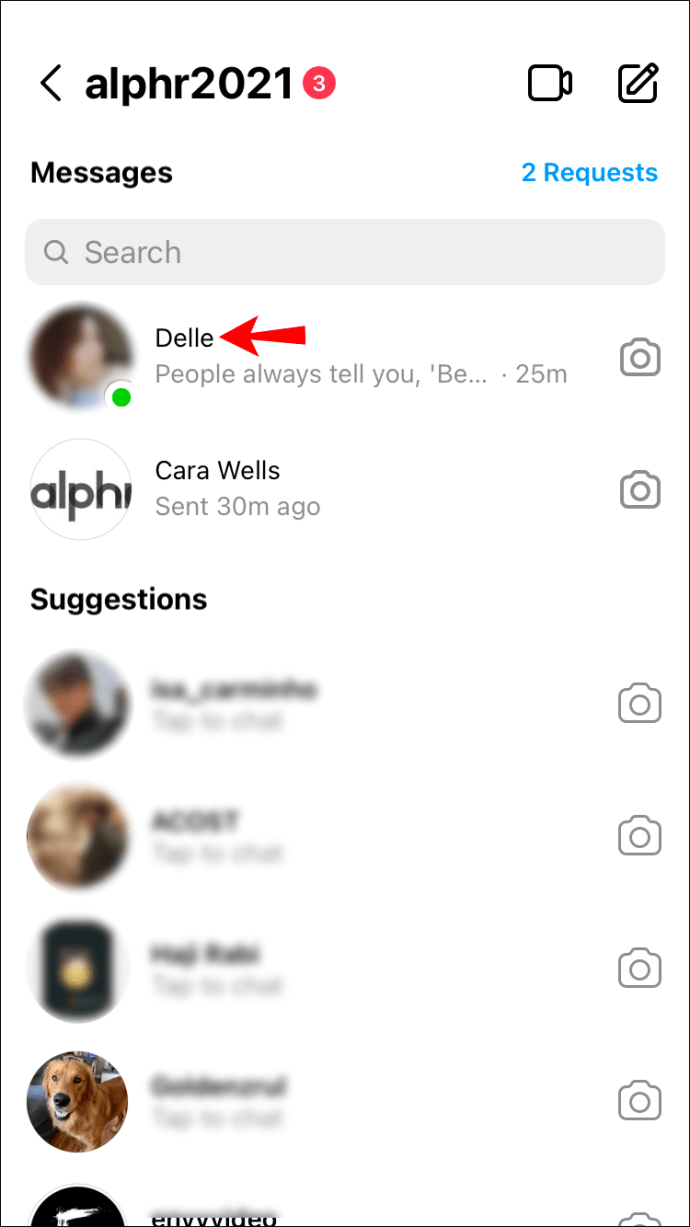
- Select the private or group conversation from your messages.
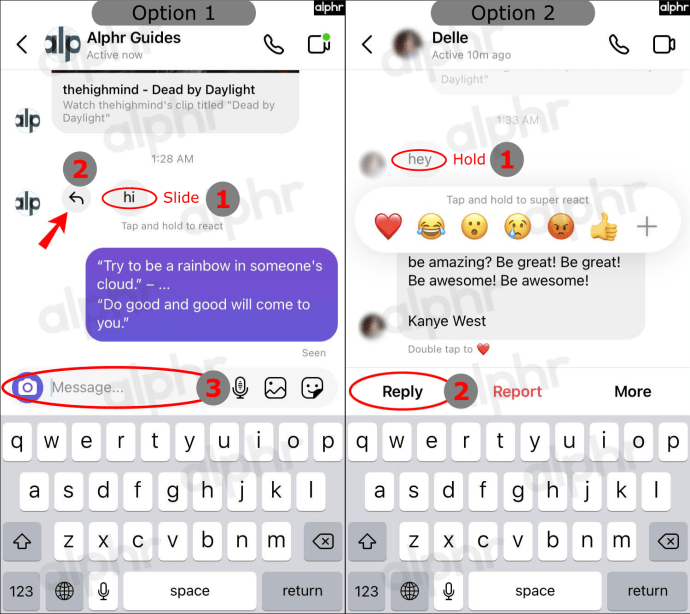
- Find the specific message in the person’s list. Swipe right on the message until you see an arrow icon appear which opens the message box, or hold down on it and select “Reply” at the bottom.
- You’ll now see the selected message attached above the text input box. Type in your reply and send it.
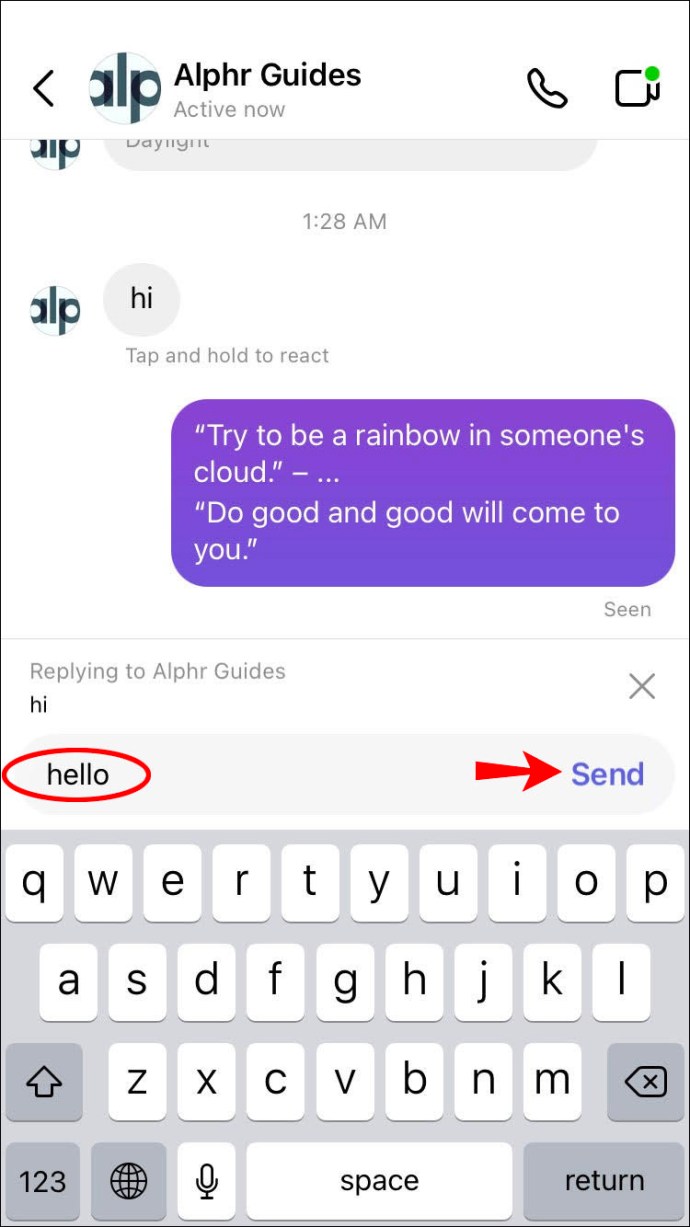
Whenever you pick a message to respond to, it displays in quotes to know which message you are referring to within the conversation. Otherwise, simply pressing reply first at the bottom sends your message by itself.
How To Reply to a Specific Message in Instagram on an Android Device
Replying to a specific Instagram message on an Android is similar to iPhone. Here’s how to respond to a message in the app:
- Open your Instagram feed and tap the messages icon in the upper right corner of the screen.
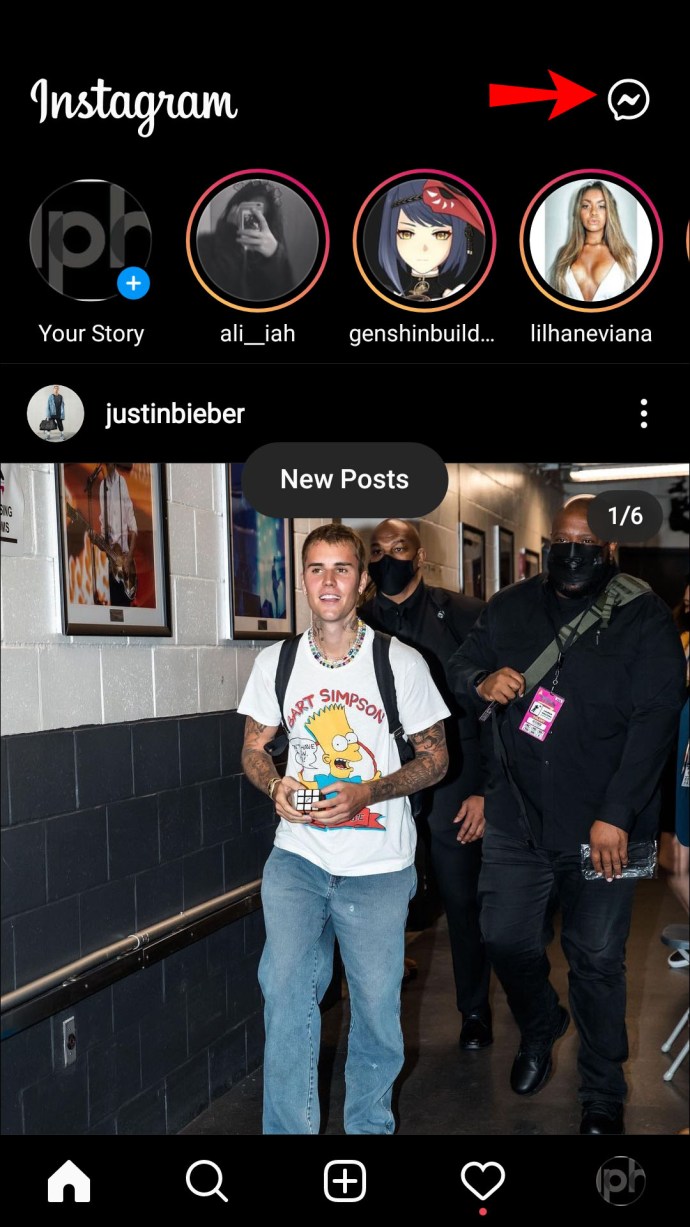
- Find a conversation containing the message you wish to respond to.
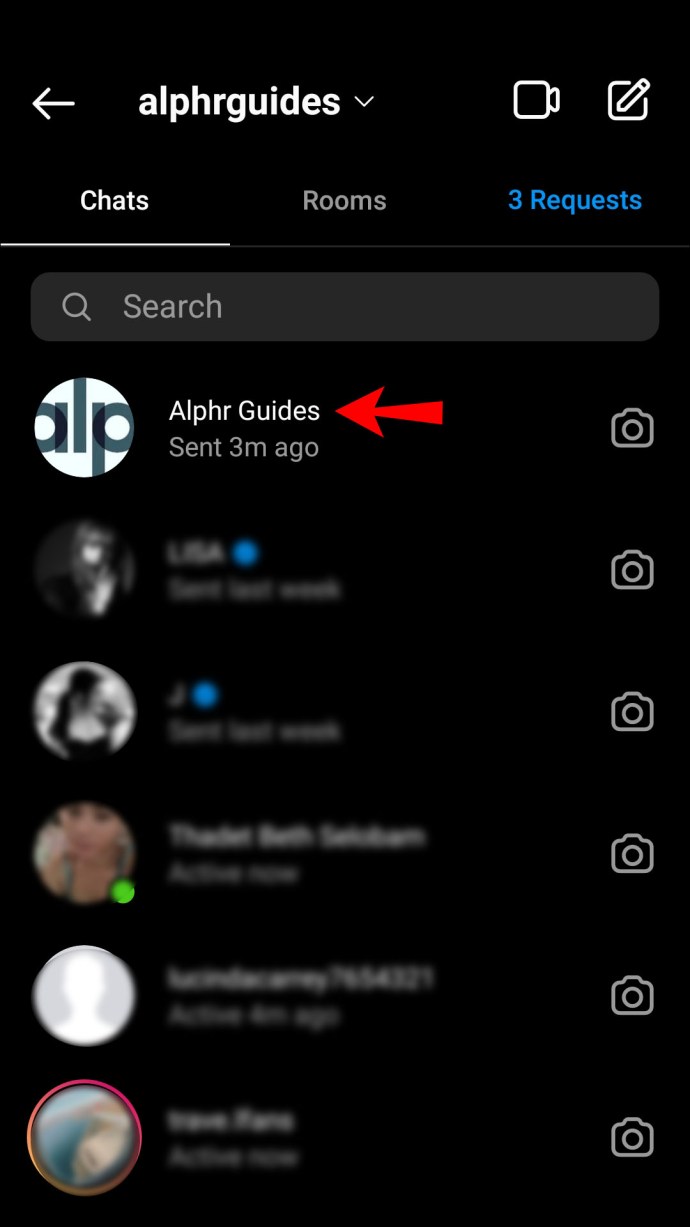
- Tap and hold the message, then swipe it to the right until it appears above the text input box.
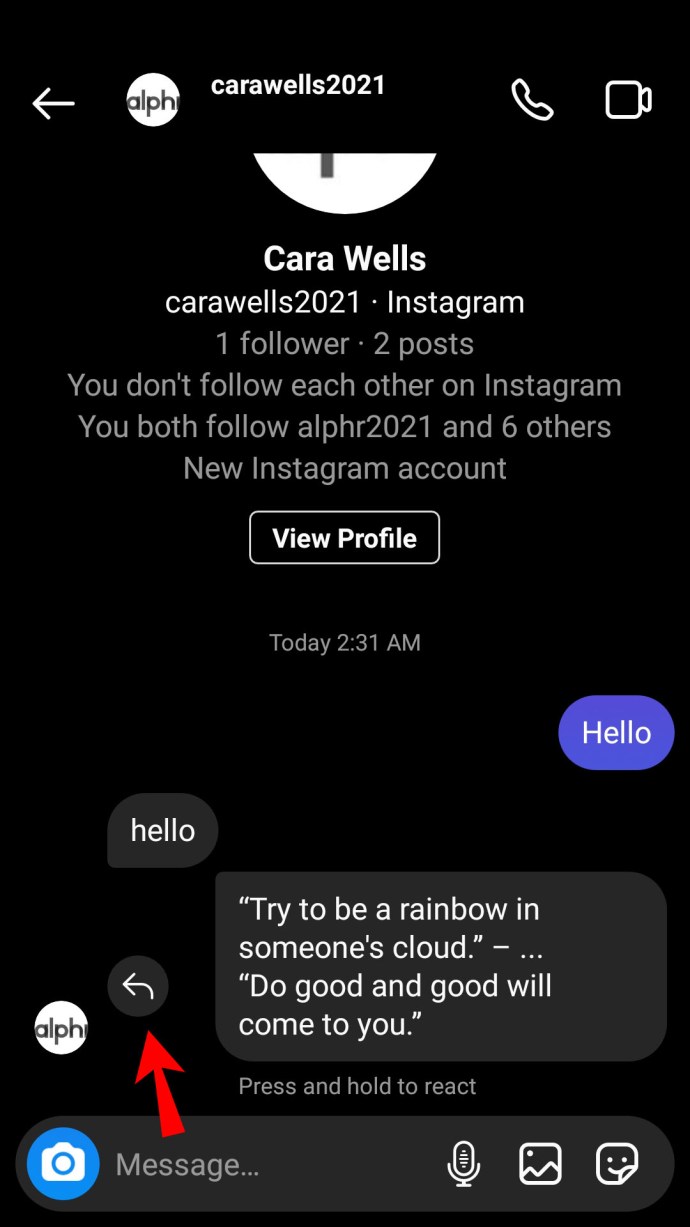
- Type in your reply. The message you respond to will be attached to your message when you send it.
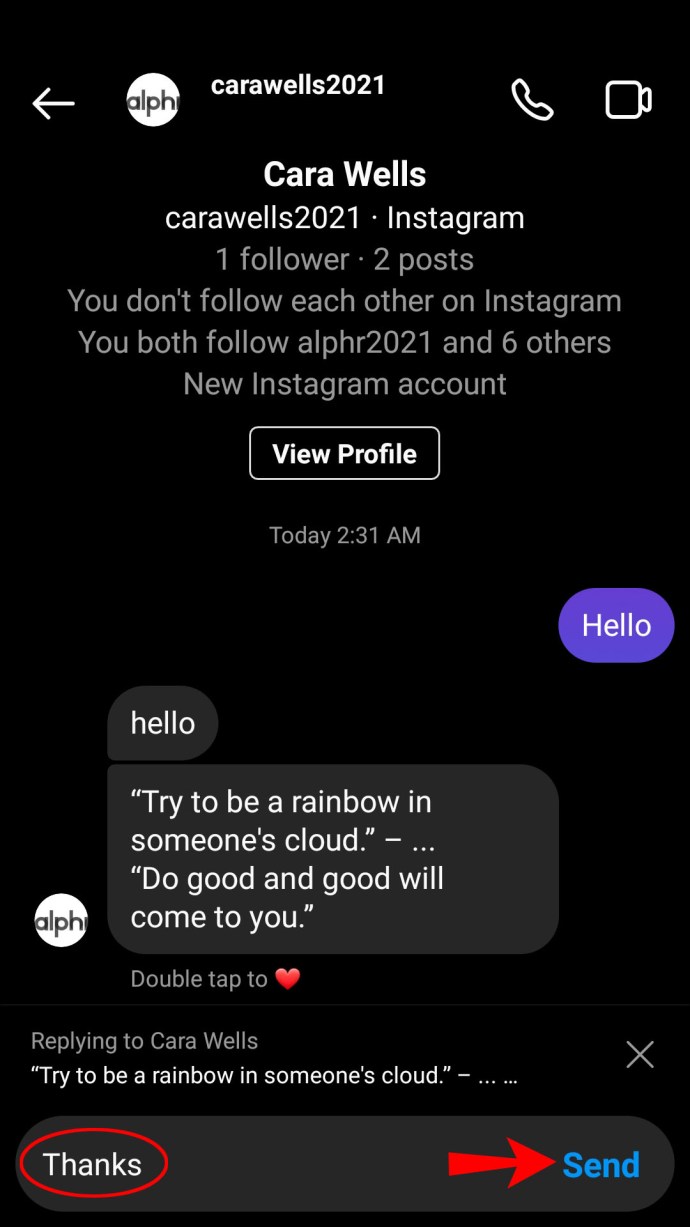
Optionally, you can respond to messages on Instagram using a different method:
- From your Instagram feed, tap the paper airplane icon in the upper right corner of your screen to access messages.
- Open a conversation and find the message you wish to reply to.
- Tap and hold the message until you see three action options appear.
- Select “Reply.” The message you’re responding to will appear above the text input box.
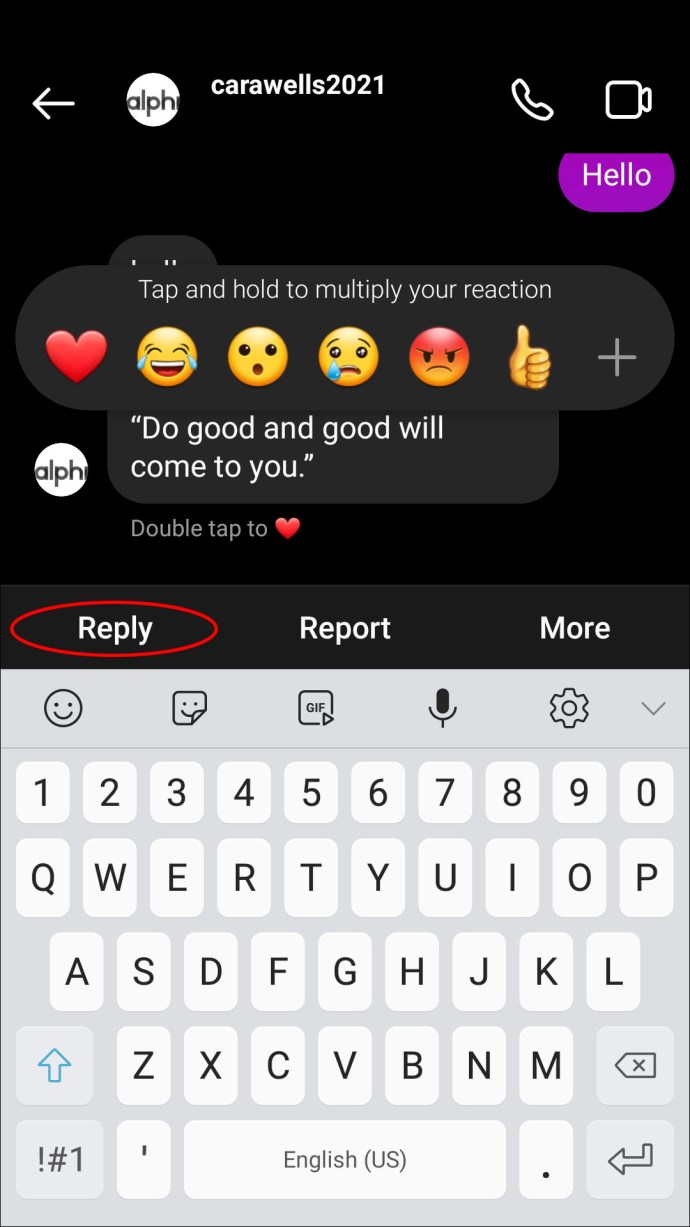
- Type in your reply. When you send it, the message will be attached to your reply.
How To Reply to a Specific Message in Instagram on a PC
The new Instagram feature is available on Instagram’s desktop version, too. Here’s how to reply to messages on Instagram on a PC:
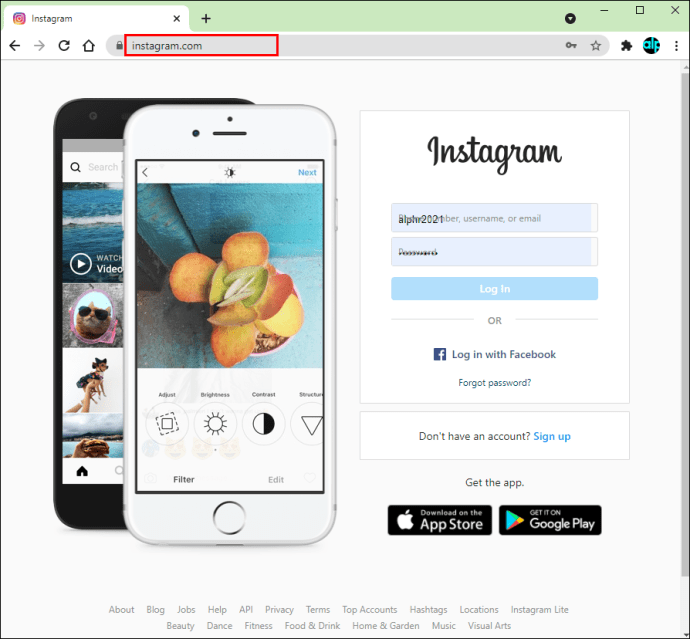
- Open Instagram on your computer.
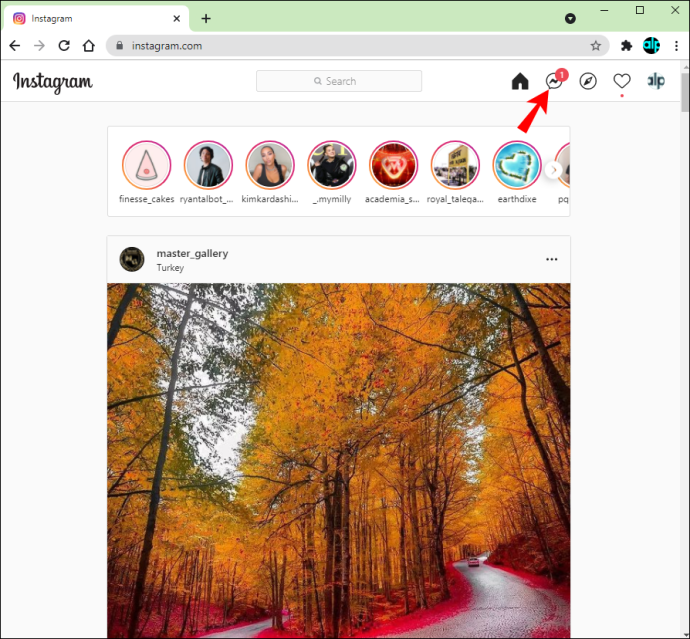
- From the feed, click the messenger icon located at the top of the screen.
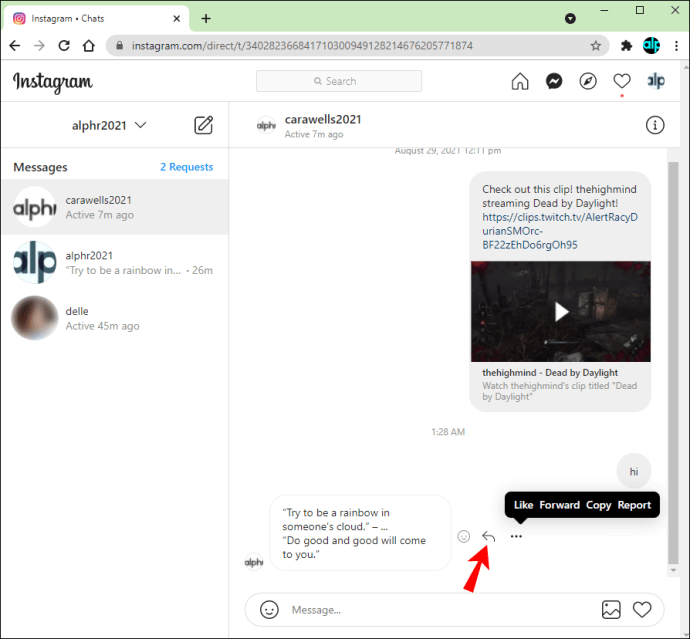
- Open a conversation and find the message you wish to respond to.
- Click the three-dot icon next to the message.
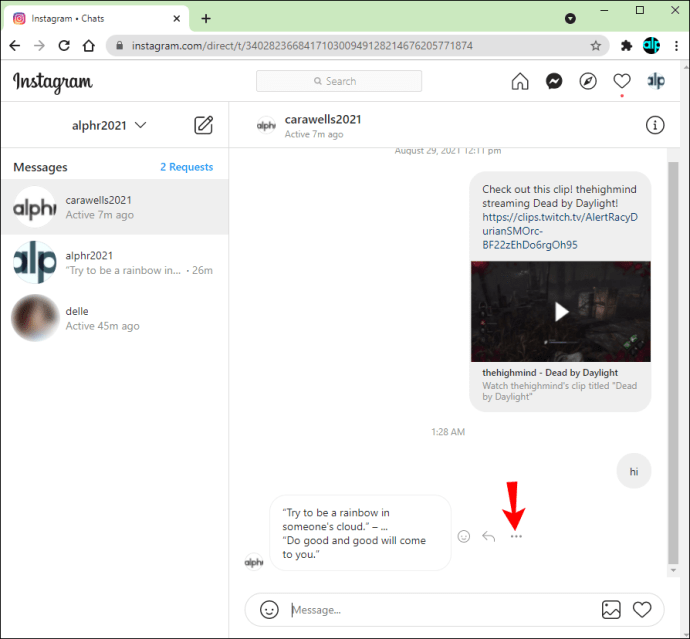
- From the suggested options, select “Reply.”
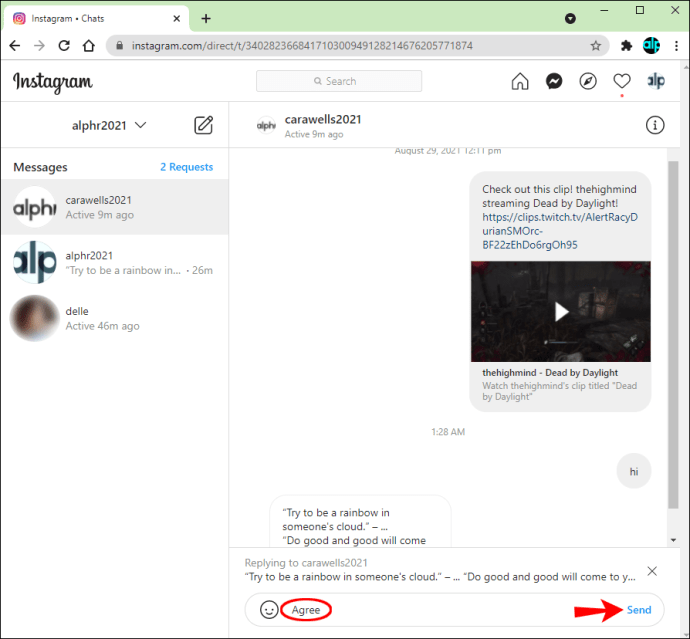
- Type in your reply and send it. The message you respond to will be attached to your message.
Now that you know how to respond to specific messages from a particular sender on Instagram, your communication with friends should become more understandable. Make sure to keep your Instagram up to date by enabling automatic updates. If the feature is unavailable in your region, keep checking if Instagram has found a way to work with European data privacy laws.
Instagram Direct Messaging FAQs
Can I Reply to Any Message on Instagram?
Yes, the feature works both in individual and group conversations. Direct message replies are beneficial with the latter, as you can avoid confusion by directly indicating which message your response involves.
READ NEXT


