
News
How to Convert PNG to JPG on Windows 10/11 (2022)

 Naijatechnews | All images and videos are copyrighted to their respective owners
Whether you want to reduce your image’s size, or you just want your image to meet a site’s upload guidelines, it’s easy to convert PNG images to JPG on a Windows 10 or 11 PC. We’ll show you how.
Warning: If your PNG image uses transparency, that will be lost when you convert your image to JPG. JPG replaces the transparent area with white color.
Ways to Convert PNG Files to JPEG Files
On Windows 10 and 11, you have multiple ways to turn a PNG image into JPG. One method is to use Windows’ built-in Paint app. This app lets you save your images in various formats, including JPG.
The other method is to use Adobe Photoshop. If you have this app installed, click a few options to get your PNGs converted to JPGs.
Convert PNG Image to JPEG Image With Paint
To use Windows’ built-in Paint app for the conversion, use this method.
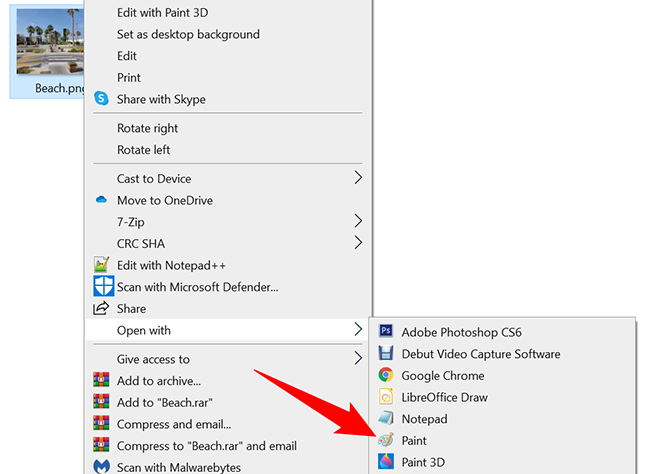
First, open a File Explorer window on your PC and locate your PNG image. Once you find the image, open it in Paint by right-clicking it and selecting Open With > Paint.
 Naijatechnews | All images and videos are copyrighted to their respective owners
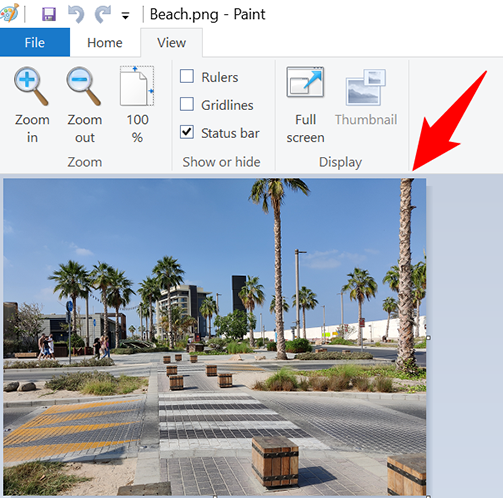
Your photo appears on the Paint window.
 Naijatechnews | All images and videos are copyrighted to their respective owners
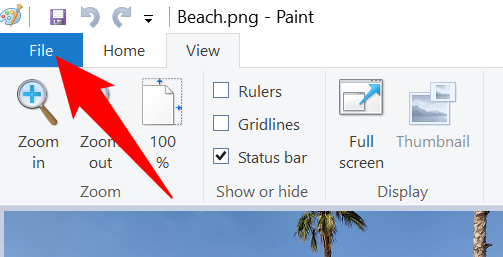
To now convert this PNG photo to JPG, in Paint’s top-left corner, click “File.”
 Naijatechnews | All images and videos are copyrighted to their respective owners
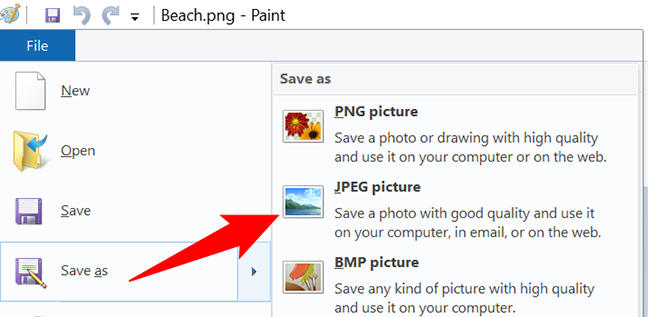
In the “File” menu, click Save As > JPEG Picture.
 Naijatechnews | All images and videos are copyrighted to their respective owners
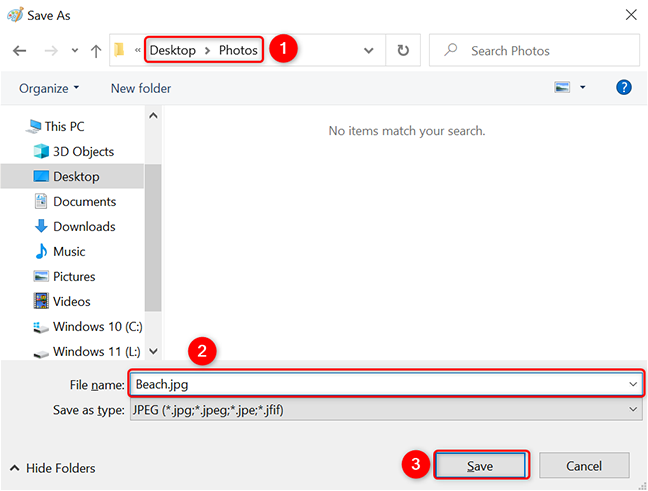
You will see a “Save As” window. In this window, select a folder to save your resulting JPG file in, type a name for the image in the “File Name” field, and finally click “Save.”
 Naijatechnews | All images and videos are copyrighted to their respective owners
And that’s all. Your JPG image is now available in your specified folder.
Convert PNG Photo to JPG Photo With Adobe Photoshop
To use Photoshop to convert PNG to JPG, first, launch a File Explorer window and locate your PNG image.
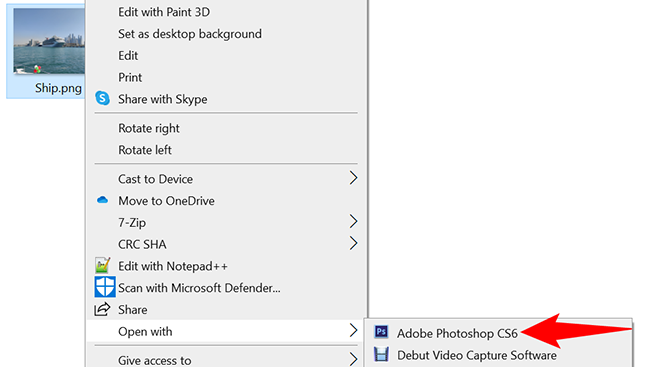
Right-click your image and select Open With > Adobe Photoshop. This launches your image in the Photoshop app.
 Naijatechnews | All images and videos are copyrighted to their respective owners
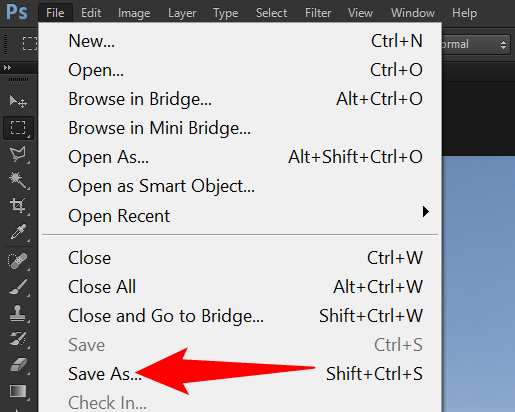
On the Photoshop window where your image is open, from the menu bar at the top, select File > Save As. Alternatively, press the Shift+Ctrl+S keyboard shortcut.
 Naijatechnews | All images and videos are copyrighted to their respective owners
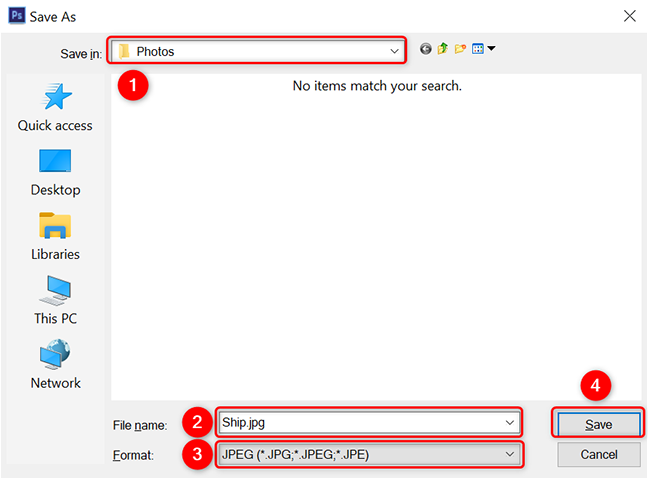
Photoshop will open a “Save As” window. Here, select a folder to save your JPG image in, click the “File Name” field and type a name for your photo, and select the “Format” drop-down menu and choose “JPEG.” Then click “Save.”
 Naijatechnews | All images and videos are copyrighted to their respective owners
Your PNG photo’s JPG version is now available in your selected folder. Enjoy!
You can also convert your PNG photo to a PDF on your Windows 10 or 11 PC, if you want.


