
News
Disable Email Forwarding in Outlook

You can disable the ability for an email recipient to forward a message in Microsoft Outlook using these steps.
Note: This feature only works well in enterprise environments that use a Microsoft Exchange Server. Recipients who receive your message via other services like Yahoo! or Gmail will still be able to forward your message.
- Select the “New Email” button to begin composing your message.
- Select the “Options” tab.
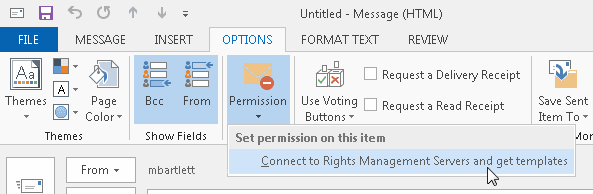
- Choose “Permissions“.
- If you haven’t used this feature before, you may have an option to choose “Connect to Rights Management Servers and get templates“. Choose this option.
- Once the templates are installed, you should be able to select “Permissions” > “Do Not Forward“.
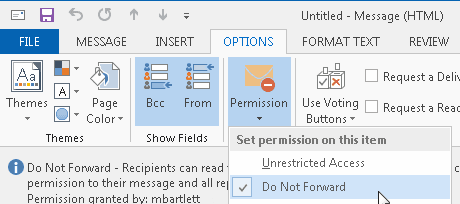
- Complete your message, then send it. Recipients will have the Forward option disabled on the email.
If you’re a system administrator who needs to enable this capability, you can follow these steps:
Login to Admin Portal, select “Tools” > “Services and addins”
Find “Microsoft Azure Information Protection“, go into the link “Manage Microsoft Azure Information Protection” settings, in there, you have the button to activate it, it will then confirm it again, just accept.
That’s done, restart client and user should connect now.
FAQ
Why is the”Permissions” option missing or grayed out from my version of Outlook?
This feature is only available in the Pro or Pro Plus versions of Microsoft Office.
If I use this method, is there still a way recipients can forward my email?
Yes. It’s not a foolproof way to prevent message forwarding. It only provides a layer of protection from forwarding the message. Recipients can still copy the text from the email, then paste it in a new one and send it wherever they desire.


