

Have you found yourself getting stuck on your telephone calls? Is your phone showing a black screen after finishing a conversation and not allowing you to end calls? Do you hear your keys being pressed when talking on your phone? Does the person that you’re talking to have to end the call because your phone won’t let you? Do you have to press your power key to unlock your phone after every call? Here are some possible causes and better yet some solutions to fix this issue on your cell phone.
Reason
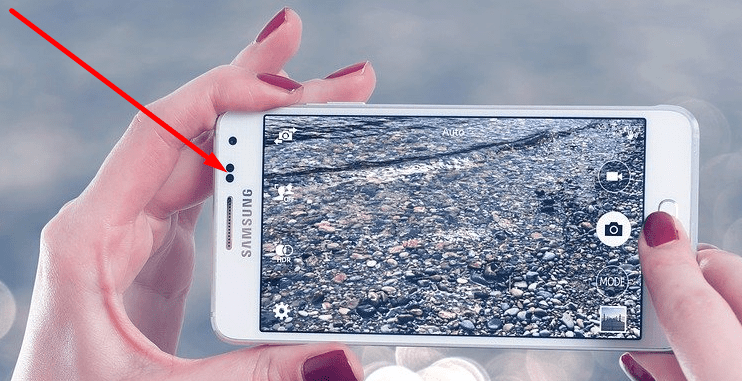
The most common reason for this issue is that the proximity sensor on your phone is not working correctly. The proximity sensor is a small little sensor, usually on the top of the phone next the logo or speaker you hold up to your ear. The sensor is supposed to recognize when you hold your phone up to your ear, so that the phone will lock (turns on the black screen), then you won’t accidently press keys with your cheek when talking to other people on the phone. After you’re done with your conversation and remove the phone from your ear the sensor is then supposed to unlock your screen and allow you to end the call.
Testing your phones sensor
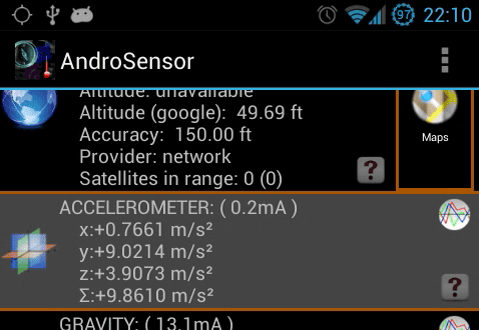
Try and run a proximity test on the device. Here are some codes that might give you the option to run a test on the sensor if you’re having this issue on a Smartphone. Go to your dial pad as though you are going to type a telephone number but instead of a telephone number try typing these codes.
*#7353# will access the Device Diagnostic Tool on Samsung phones and some other Smartphones excluding HTC often there is a proximity sensor test option shown here.
*#*#3424#*#* can be used to open the Device Diagnostic Tool on an HTC Android phone, some HTC phones show an option to test the proximity sensor through this diagnostic tool, some HTC phones don’t.
*#*#0588#*#* will also run a Proximity Sensor Test on some Smartphones.
If you’re interested in other fun codes for your smartphone you can check out Some Useful and Interesting Codes for Smartphones.
If none of these codes worked on your phone, or you’re not sure if the sensor passed the test, or if you’re still getting a black screen after phone calls or cant end calls, then just make a call and hold your hand over the top of the display and see if the screen locks or turns into a black screen. Then remove your hand from the top of the phone and see if the screen comes back, if it does your sensor is working.
Just keep an eye on the top area of the phone above the display. If the sensor has oil from your skin or makeup covering it then it might not work correctly. Also make sure if you have a case, especially one that might not be made specifically for the phone you’re using, make sure it’s not covering the sensor either.
Other possible reasons
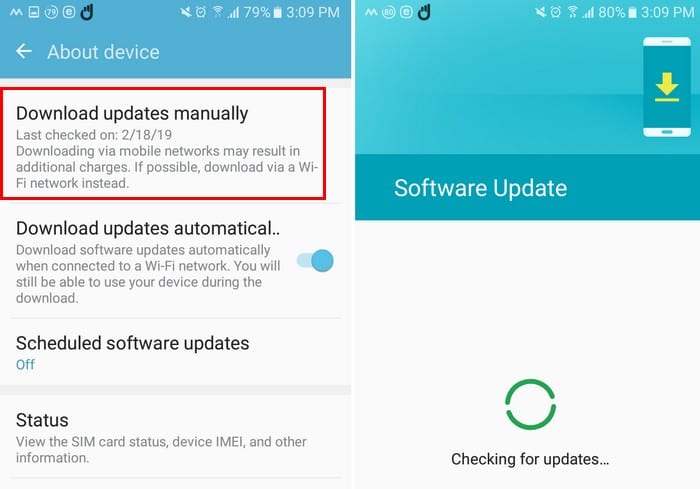
If your sensors clean and doesn’t have anything obstructing its view then it could be something like a bug, glitch, or maybe even virus on the phone that’s causing these problems. What I recommend is that you do a full backup on your phone, save your pictures, contacts, text messages etc then once your information is saved perform a full wipe on the phone. This usually fixes weird phone issues like this, because it basically sets the phone to how it was when it was new right of the shelf.
Doing a backup and reset isn’t too much of a chore but it might seem overwhelming if you have a Smartphone and have not done it yet.
If you have a phone that uses the Android Operating System and would like help with the backup and reset process then you can click here for a step by step guide. Once you do the backup and reset it should resolve your issue. If not, and your phone is still having issues then you might want to check out some of these additional options that might be available.
Conclusion
Thanks for reading this article. I hope that it has helped you fix this annoying issue on your cell phone. If you have any questions or would simply like to leave a friendly remark then don’t hesitate to leave a comment below.


