
News
Guide: How to Do a Hanging Indent on Google Docs

Naijatechnews | All images and videos are copyrighted to their respective owners
Google Docs makes it easy to create a hanging indent in your documents. You can use either a menu bar option or the document ruler to make a hanging indent. We’ll show you how.
Create a Hanging Indent With a Menu Bar Option
A quick and easy way to create a hanging indent in Google Docs is to use a menu bar option.
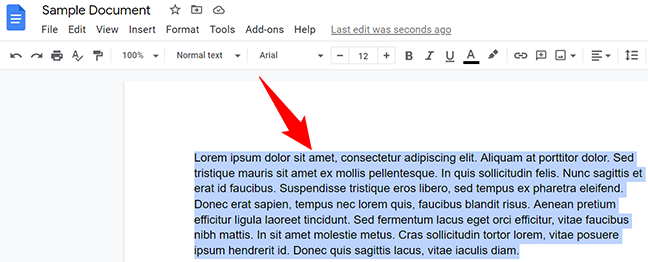
To start, open your document on Google Docs. In the document, select the text to which you want to apply hanging indent options.
 Naijatechnews | All images and videos are copyrighted to their respective owners
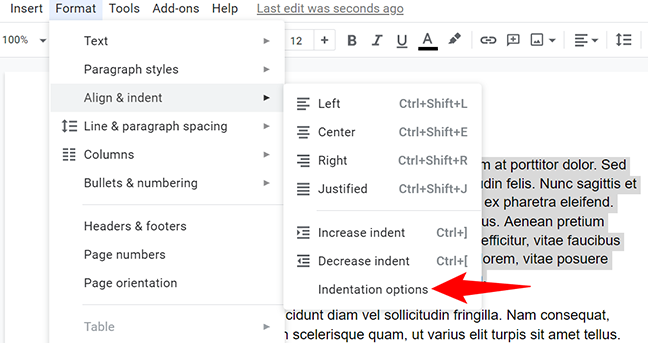
While your text is selected, in Google Docs’ menu bar, click Format > Align & Indent > Indentation Options.
 Naijatechnews | All images and videos are copyrighted to their respective owners
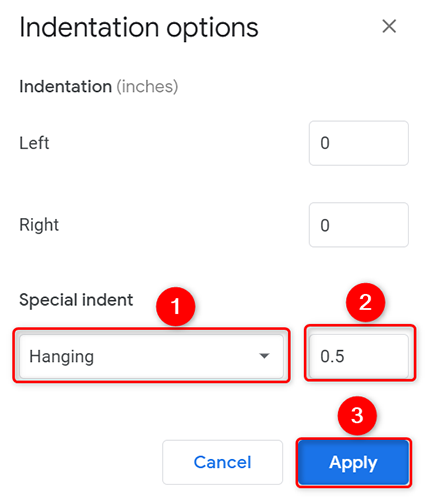
On the “Indentation Options” box, click the “Special Indent” drop-down menu and choose “Hanging.” Then, in the new box that opens, specify the indentation and click “Apply.”
 Naijatechnews | All images and videos are copyrighted to their respective owners
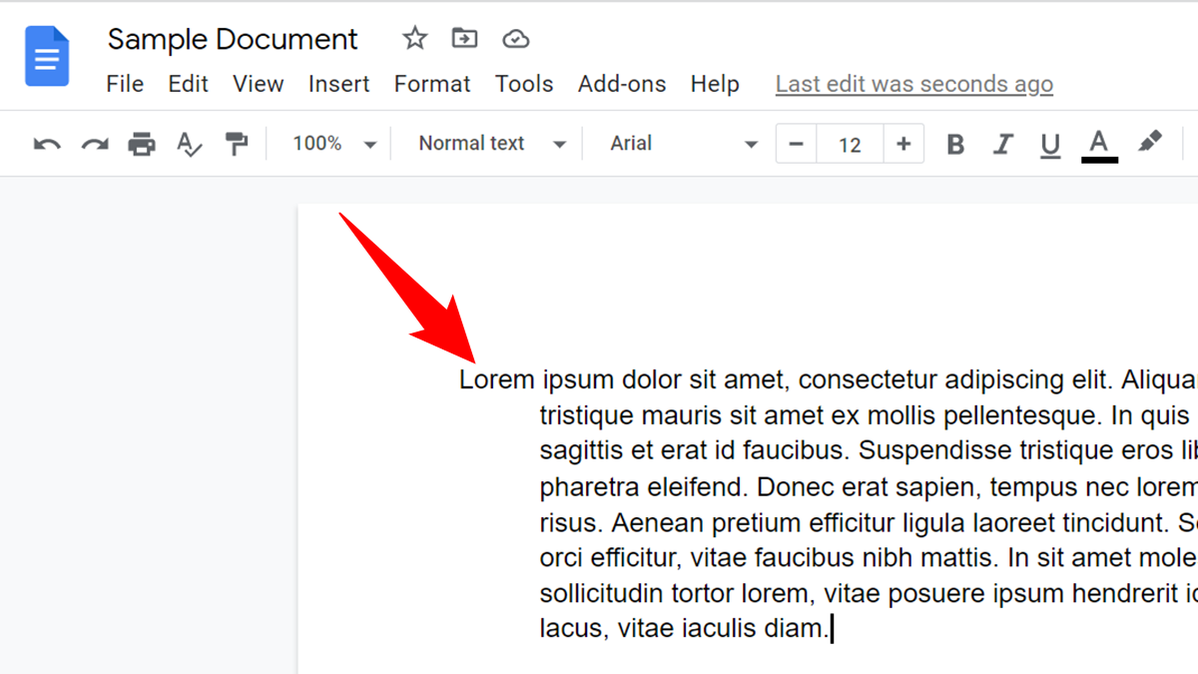
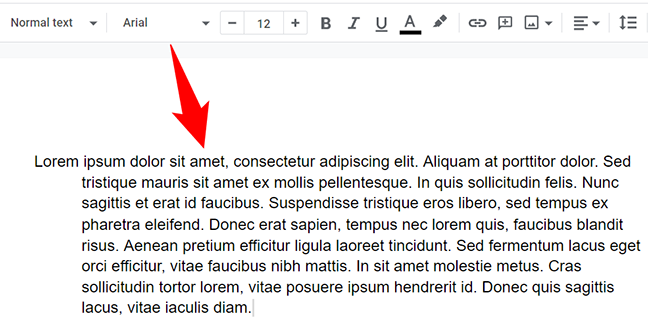
Your hanging indent is now ready in your document.
 Naijatechnews | All images and videos are copyrighted to their respective owners
That’s all.
Create a Hanging Indent With the Ruler
If you prefer dragging and dropping items, use the ruler method to create a hanging indent in your documents.
Start by opening your document in Google Docs.
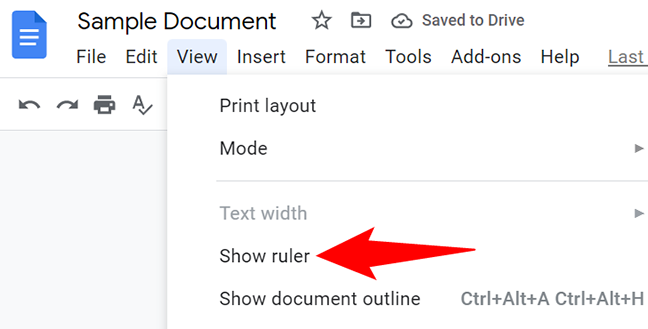
Enable the ruler if it is not already by clicking View > Show Ruler in Google Docs’ menu bar.
 Naijatechnews | All images and videos are copyrighted to their respective owners
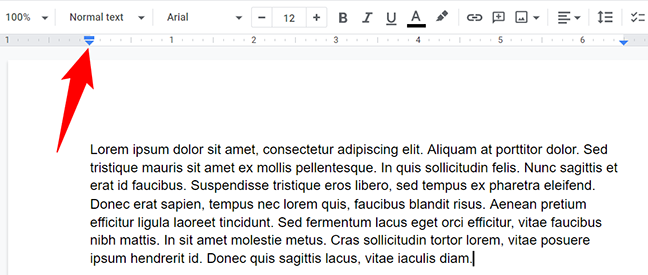
A ruler appears at the top of your document. To move your text or paragraph, click the blue triangle in the ruler and drag it to the right.
 Naijatechnews | All images and videos are copyrighted to their respective owners
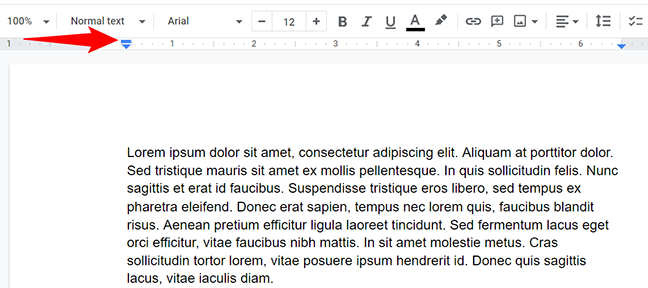
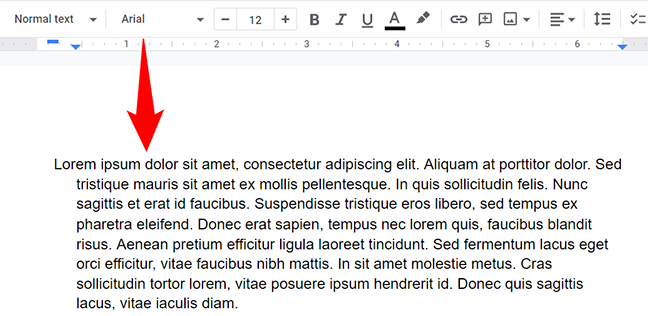
To now create a hanging indent, in the ruler, click the small blue line and drag it to wherever you want the hanging indent. This blue line only changes the indentation for the first line of your text.
 Naijatechnews | All images and videos are copyrighted to their respective owners
And your hanging indent is now created.
 Naijatechnews | All images and videos are copyrighted to their respective owners
And that’s all there is to it.
If you’re creating a slideshow presentation to go along with your document, you can also quickly and easily create a hanging indent in Google Slides.


