
News
Best Guide: Import Bookmarks Into Mozilla Firefox (2022)


If
If you are going to use Mozilla Firefox as your default browser, you might want to import bookmarks from your other browser into this one. Firefox makes it easy to do that, and we’ll show you how.
See also:
Ways to Import Bookmarks Into Firefox
There are two ways to import bookmarks into Firefox.
If the browser from which you want to import bookmarks is installed on the same computer as Firefox, use Firefox’s direct import feature. This feature lets you select the source browser and then helps you migrate various data, including bookmarks.
In case you have exported bookmarks from your other browser to an HTML file, use Firefox’s import HTML feature. With this method, you load your HTML file into Firefox and the browser adds all your bookmarks. You don’t need to have the other browser installed.
Import Bookmarks Into Firefox From Another Web Browser
To directly fetch bookmarks from another web browser into Firefox, first, launch the Firefox app on your computer.
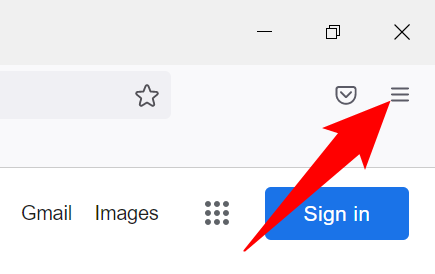
In Firefox’s top-right corner, click the hamburger menu (three horizontal lines).
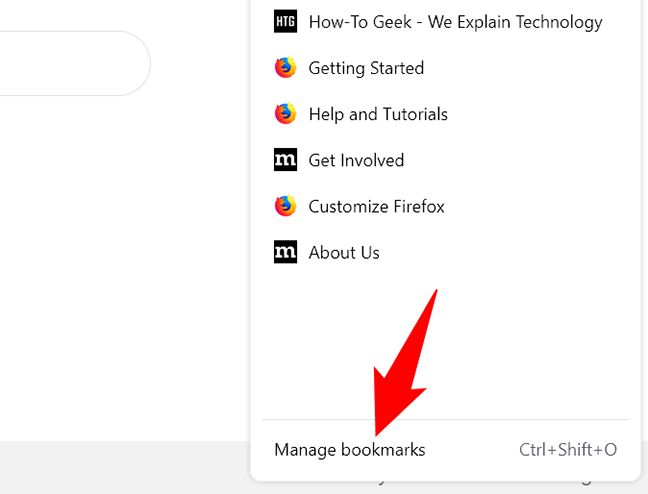
In the menu that opens, select Bookmarks > Manage Bookmarks.
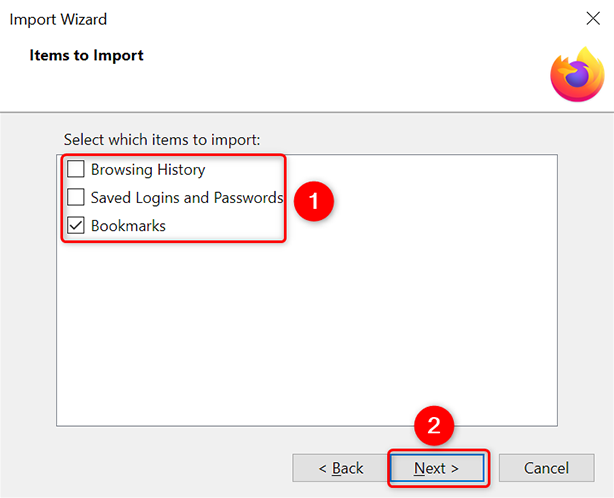
Then click “Next.”
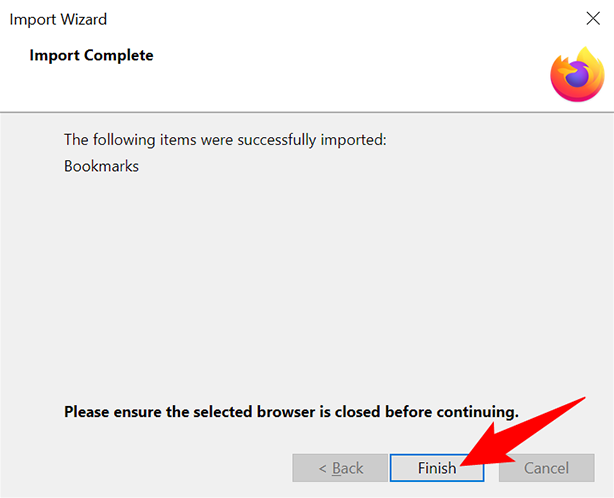
Firefox will import the bookmarks from your selected browser. You will see an “Import Complete” message in the wizard, which indicates all your bookmarks are now available in this browser.
To close the wizard window, click “Finish.”
Import Bookmarks Into Firefox From an HTML File
If your bookmarks are saved in an HTML file, load this file into Firefox to add your bookmarks.
To do so, first, launch Firefox on your computer. In Firefox’s top-right corner, click the hamburger menu (three horizontal lines).
In the hamburger menu, click Bookmarks > Manage Bookmarks.
You will see a “Library” window. Here, click Import and Backup > Import Bookmarks From HTML.
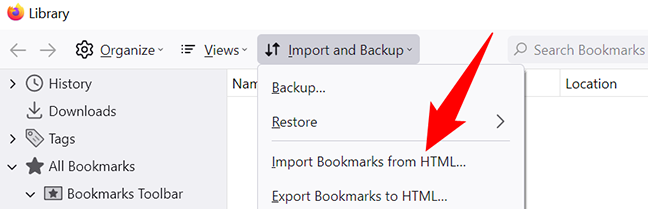
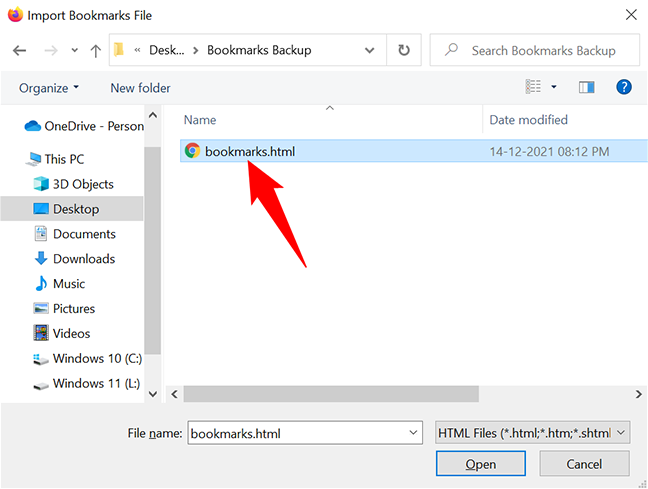
Firefox will add the bookmarks from your chosen HTML file. You’re now ready to complete your Firefox setup.
Import Bookmarks Into Firefox on iPhone, iPad, and Android
Firefox’s iPhone, iPad, and Android versions do not offer the option to import bookmarks. However, you can sync the app with desktop Firefox to get your computer’s bookmarks on your phone.
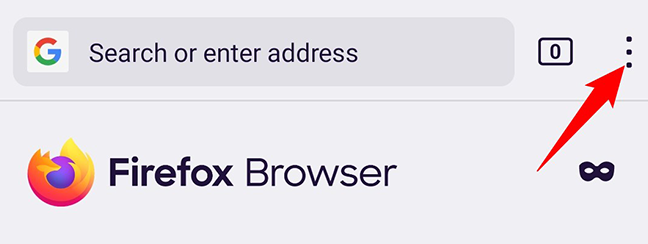
To do that, first, launch Firefox on your phone. In the browser’s top-right corner, tap the three dots.
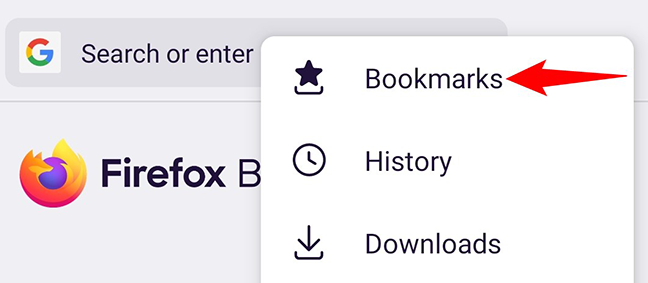
In the three-dots menu, tap “Bookmarks.”
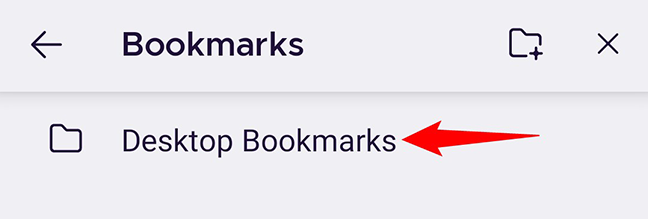
When the “Bookmarks” page opens, tap “Desktop Bookmarks.”
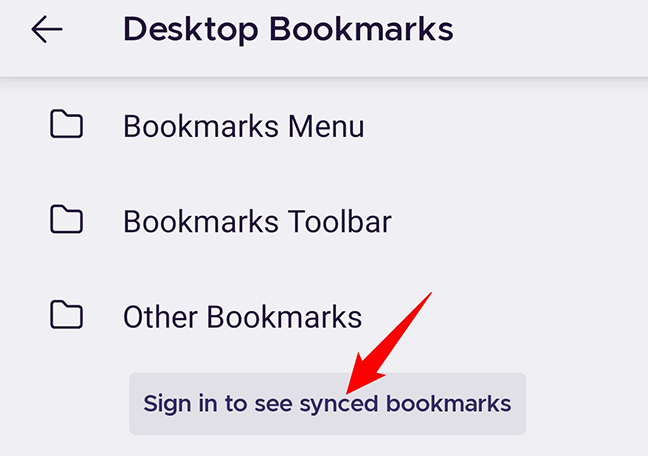
Sign in to your account, and once your bookmarks finish syncing, you will see them in the app on your phone. Cheers!


