
News
How to Password Protect Document File in Microsoft Word


Password protect your Microsoft Word 2021, 2016 or 365 document. You can prevent people from viewing or modifying documents unless they have a password with these steps.
Windows Version – Option 1
- With the document you wish to password protect open, select “File” > “Info“.
- Select the “Protect Document” option (icon with a lock).
- Choose “Encrypt with password“.
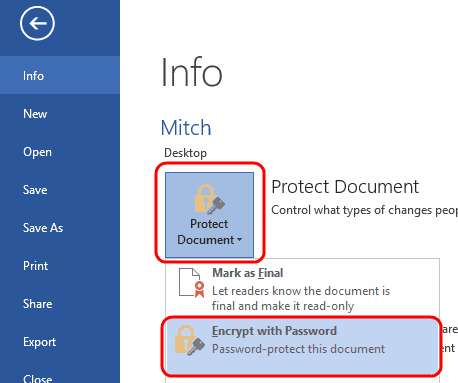
- Type the password you wish to use, then select “OK“.
- Type the password again, then select “OK“.
Save the file in the docx format. It will then be password protected.
Windows Version – Option 2
- Select the “Save” option in the upper-left corner (disk). If you’ve already saved the file, you will need to select “File” > “Save As…“
- Select “Browse“.
- Select the “Tools” menu in the lower-right corner of the window, and choose “General Options…”
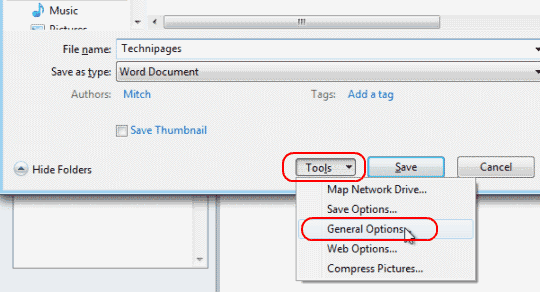
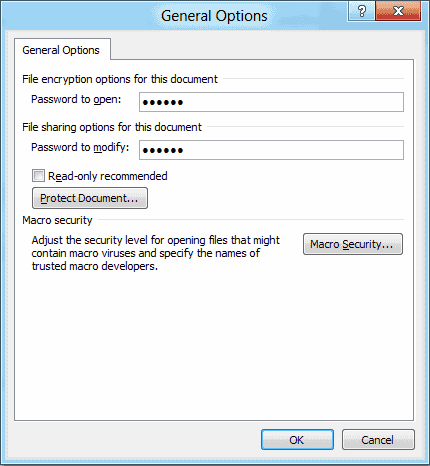
- Enter a “Password to open” or “Password to modify“, or both. Select “OK” when done.
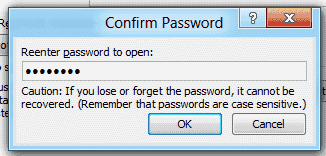
- Retype the password(s) when prompted. Select “OK“.
- Choose “Save“, and you’re done.
macOS
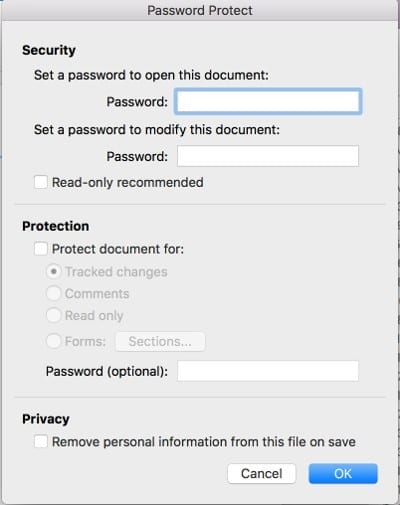
- With the document you wish to password protect open, select “Tools” > “Protect Document…“.
- Set a password in the fields desired. You can protect the document from being opened and/or modified.
FAQ
How do I remove the password from the file?
Open the file, type the required password, then go to “File” > “Info” > “Protect Document” > “Encrypt with password“, then simply remove the password and click “OK“. Be sure to save the file, and it will not require a password the next time it is opened.
My email system won’t allow me to send this file. What do I do?
Try to zip the file using Winzip or WinRAR, then send the zipped file via email.
I have set encryption, but when I open the document again, it isn’t prompting me for a password. Why?
You probably saved the file in a format that supports encryption like Rich Text Format (RTF). Save the file as “Word Document (*.docx)“.


