
News
Trick on how to avoid being draining of your iPhone battery overnight

When your iPhone’s battery drains overnight, you should spring into action immediately. There are many instances when users face this issue. A host of reasons can be cited as culprits, but the primary one is a software update. I have noticed that the phone battery gets discharged especially after an iOS update. Even as the phone stays idle during the night, it consumes a battery.
Usually, my iPhone battery drains 15% to 20% overnight; but when this percentage borders to 30%, you need to think about the problem. Before you go for a battery replacement program, you can check some tips and tricks to fix iPhone idle battery drain issues.
12 Tips to fix iPhone overnight battery drain issue
Rebooting or force rebooting your device won’t help you. The two workarounds are the most common solutions provided by many experts, but they cannot work for all the problems you face on your iOS device. Try out these solutions mentioned below.
- Turn off Wi-Fi and Mobile Data
- Turn Bluetooth off when you’re not using it
- Adjust brightness on iPhone
- Use Night Shift mode
- Enable Low Power Mode
- Disable Location Services on iPhone
- Turn off Background App Refresh
- Update iOS apps regularly
- Update iOS software
- Remove unnecessary apps from iPhone
- Check battery usage
- Start battery replacement program
1. Turn off Wi-Fi and Mobile Data
Your iPhone remains idle mostly during the night. A better step is to disconnect the device from a Wi-Fi or cellular connection. This will also give you sound sleep during the night.
- To turn off Wi-Fi, go to Settings → Wi-Fi → Turn off Wi-Fi.
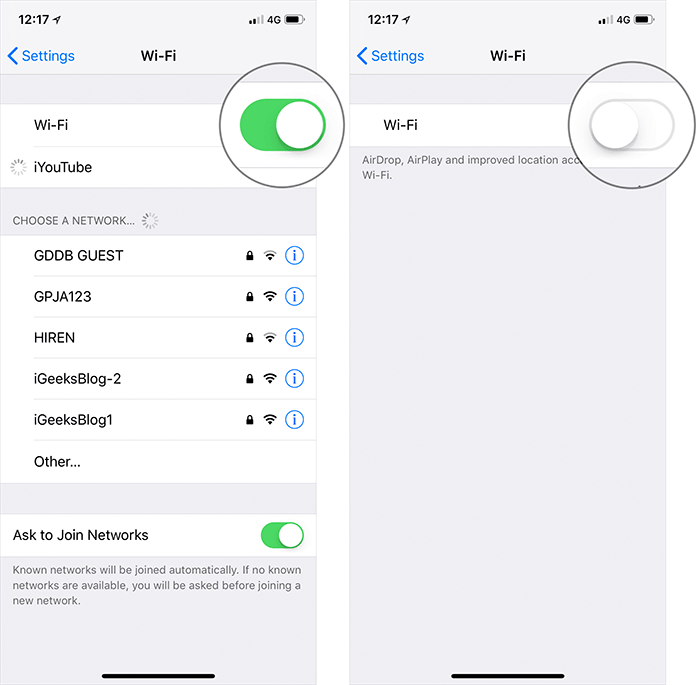
- To turn off Mobile Data, go to Settings → Cellular (Mobile Data) → Turn off Cellular Data.

Alternatively, you can turn off Wi-Fi and Mobile Data from the Control Center. Swipe up or down on your iPhone screen and turn off Wi-Fi or Cellular Data.
Related:Read Someone Text Messages With This Top 6 Apps
There won’t be any notifications from any app on your device and you can save your phone’s battery life.
2. Turn Bluetooth off when you’re not using it
During the day, you may listen to music or podcasts on your iPhone via Bluetooth headphones. But in your bedroom, you need to spend me-time or quality time with your partner. Disconnect any Bluetooth speakers or headphones from your iPhone. If you are not using Apple Watch, you can also turn off the Bluetooth option on your phone.
Settings → Bluetooth → Turn off Bluetooth. You can also disable Bluetooth by swiping up or down on your phone screen. From the Control Center, tap on Bluetooth icon to turn it off.

3. Adjust brightness on iPhone
Adjusting brightness on your iPhone will not only protect your eyes but also save battery life. In addition to reducing brightness, you can also manage Night Shift and Auto-Lock options on your device.
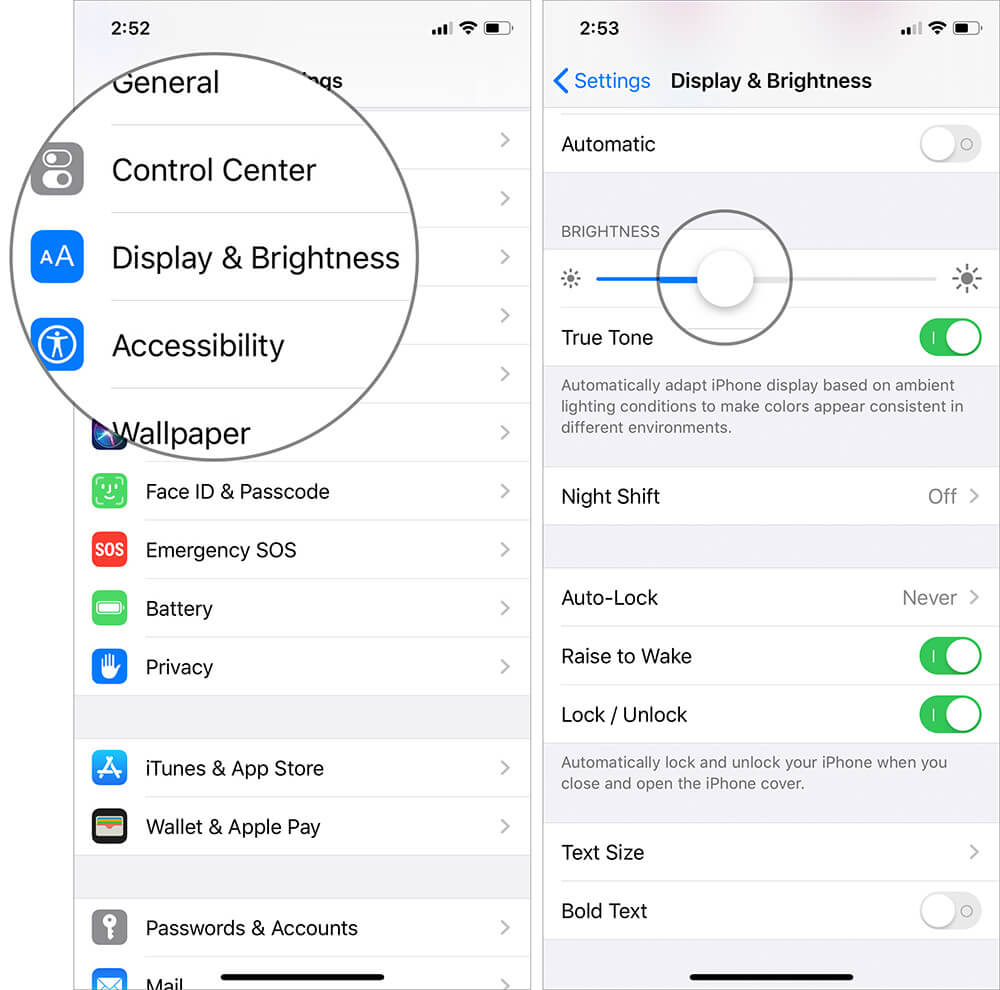
Settings → Display & Brightness → Move the BRIGHTNESS slider to left. This will reduce the phone brightness and you can see the results on your iPhone screen.
4. Use Night Shift mode
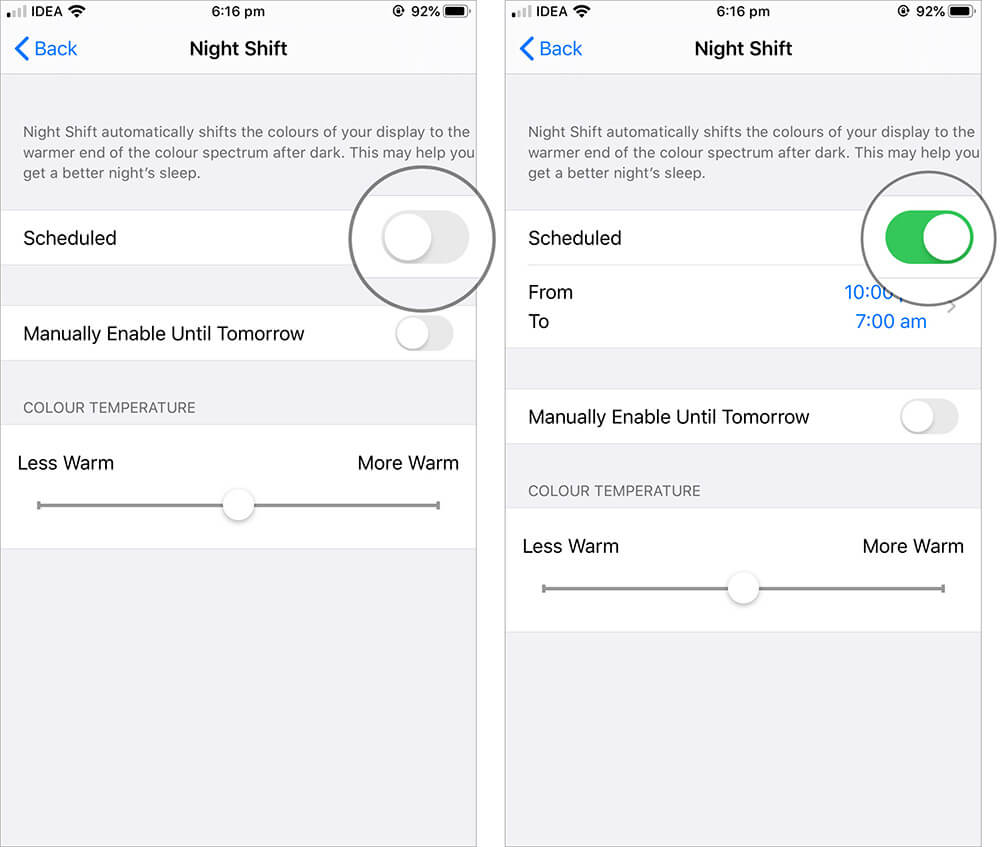
Using Night Shift mode is one of the ways you can save battery on your iOS device. For the last couple of years, Apple has not made any big change in this area. You can find this option in Display & Brightness in the Settings app. When you enable Night Shift, it automatically shifts the colors of your phone display to the warmer end of the color spectrum after sunset.
5. Enable Low Power Mode
Apple introduced a low power mode in 2015 with its iOS 9. When you turn on this option, your Apple device will gain three additional hours of battery life. However, you may not perform some tasks on your iPhone until you disable low power mode. Since the feature saves your iPhone’s battery, users like to use this feature on their iPhone. Note that low power mode is not available on iPads. You can turn on low power mode using Siri and 3D Touch as well.

6. Disable Location Services on iPhone
Third-party iOS apps like Facebook, WhatsApp, Skype, and others use GPS to find your location. And they do this continuously. This consumes your iPhone battery when you use any one of the apps on your iPhone. A better way is to turn off Location Services on your iPhone.
Go to Settings → Privacy → Location Services → Turn off Location Services.
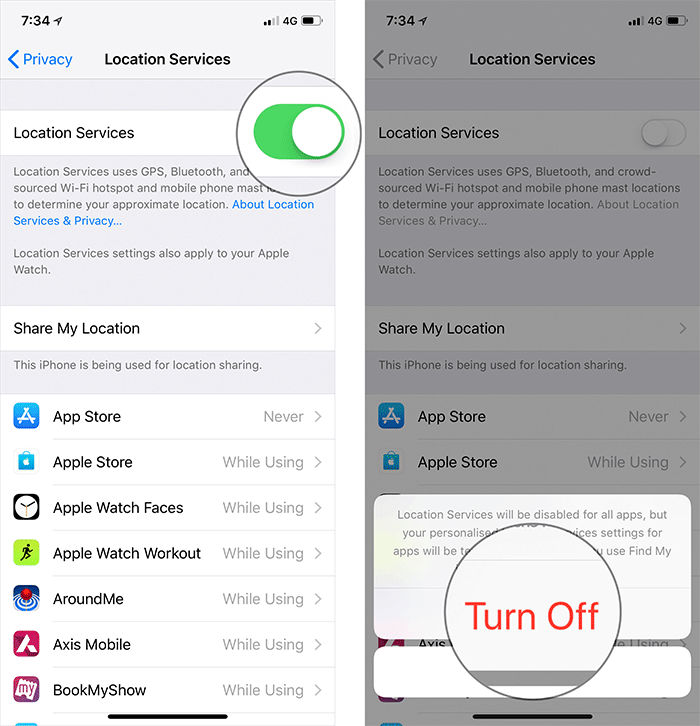
A pop-up will appear from the bottom of your phone screen. You will be prompted to confirm your action. Note that your action will disable Locations Services for all apps. However, your personalized Location Services settings for apps will be restored temporarily in case you use Find My iPhone to enable Lost Mode. Finally, tap on Turn Off.
7. Turn off Background App Refresh
In a day, we open a lot of apps on our iPhone. Once we finish our task on the app, we clean forget to kill the app from running in the background. This means the app is still open in the background. With the Background App Refresh option enabled, the app data keeps the app refreshed, and when you open the app again, you get the new data on that app.
While the feature is useful prima facie, it indeed consumes your iPhone battery. You can disable Background App Refresh on your iPhone to save battery on your phone.
Related:Download YouTube Video On Your iPhone- How To Go About It
Go to Settings → General → Background App Refresh → Tap on Background App Refresh → Select Off.

Alternatively, you can turn off Background App Refresh for a particular app. On the Background App Refresh screen, you can see a list of apps that get refreshed in the background. You can disable the toggle for individual apps to turn off Background App Refresh.
8. Update iOS apps regularly
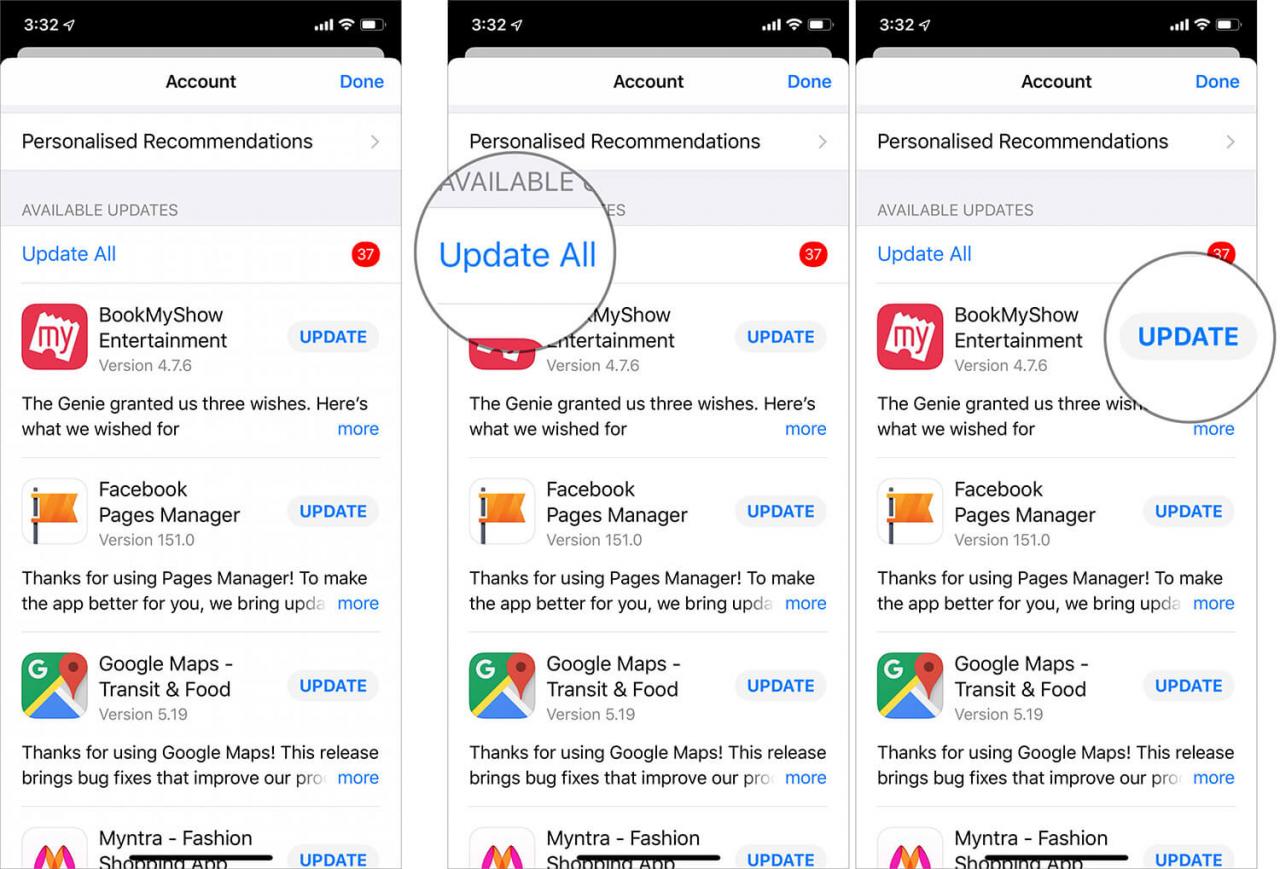
As an iPhone user, you should be alert enough to take some proactive actions. Regular app updates keep your device healthy and advanced. Stronger battery life is one of the benefits of updating apps regularly. Apple and third-party developers add and remove some features from their apps. While Apple does it once a year, third-party developers follow this practice twice or thrice a month. Updates kill the bugs inside the apps and thus enhance the performance of iPhone apps.
9. Update iOS software
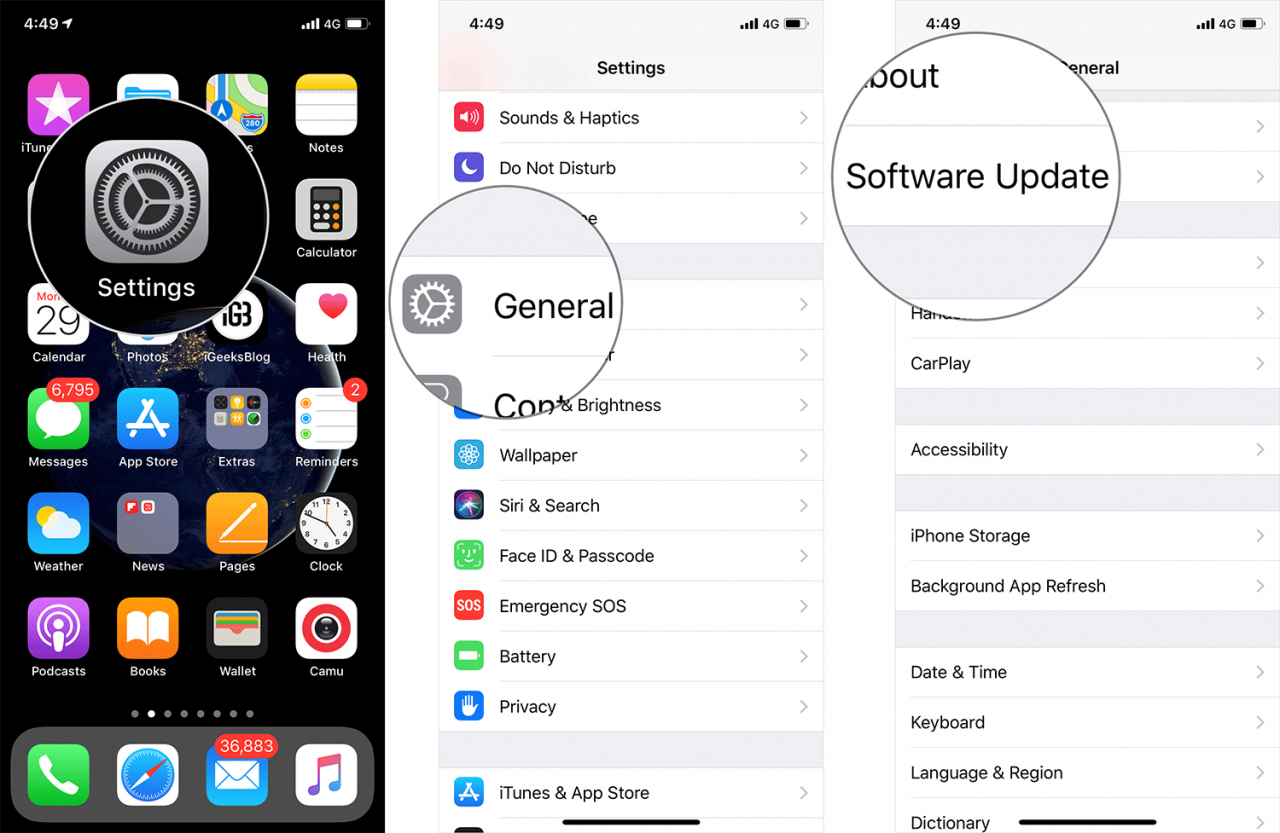
As mentioned above, Apple updates its stock apps every year. In June, Apple sends invitations to iOS developers to attend its Worldwide Developers Conference (WWDC). This is the time when Apple introduces its iOS update. The company makes some significant changes and upgrades in the operating system.
10. Remove unnecessary apps from iPhone
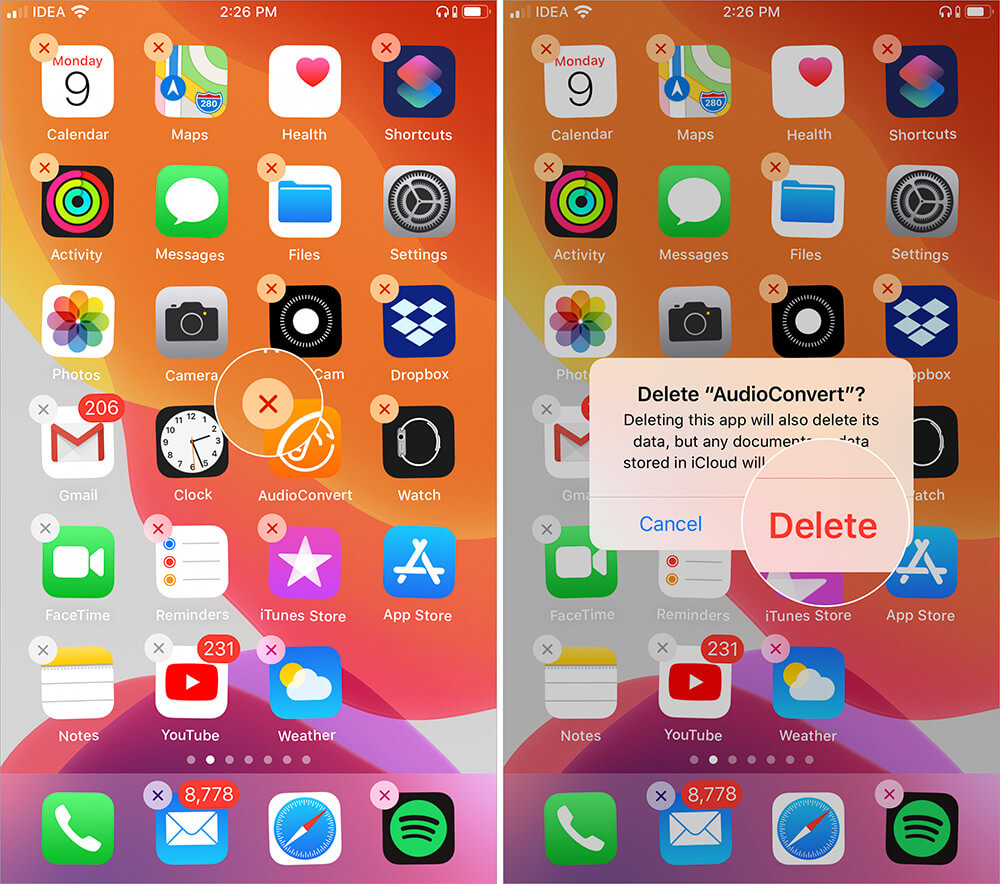
A pro user has at least 100 third-party apps on his/her iPhone. But they know how to save battery on their devices. You may not be a pro user, but you could be using half the number of apps on your iPhone. And there can be nearly 5-10 apps you would use in months. It is wiser of you to remove those unused apps from your phone. This action ensures the smooth performance of your phone and a stronger battery. Moreover, you get some more space on your device to store other essential data.
11. Check battery usage
Battery Usage lets you know which app consumes how much battery on your iPhone. This feature was introduced by Apple in iOS 9, and in subsequent software updates, Apple has improved this feature a lot. To solve the idle battery drain issue, you need to check battery usage on your iPhone.
12. Start battery replacement program
If your iPhone is covered by a warranty, you can get its battery replaced. However, you should go for this in the last resort, when all the above steps fail to give any results. Not sure about the warranty coverage of your device? You can check your service and support coverage on the Check Coverage page on the Apple website.
Related:Sideloading Apps Is Unsafe- Apple Tells US Senate
My best advice to all is to disconnect your iPhone from Wi-Fi or Cellular data; use low power mode during the night, and keep the brightness reduced. I notice that some of my friends and colleagues charge their devices even as the battery shows more than 50%. One should let the iPhone battery drained to 20% or less than that. When you charge a completely drained iPhone, the battery lasts longer.


