
Did you know you could easily stream your favorite movies and shows from Netflix, Youtube and other channels to Apple TV from your iOS device?
Yup, you heard that right! Apple’s ecosystem is quite compatible and allows you to mirror your iOS device for streaming content on Apple TV via a simple mechanism called “Airplay”.
Let’s see how it works. Here are the quick steps for streaming iPhone content on Apple TV:
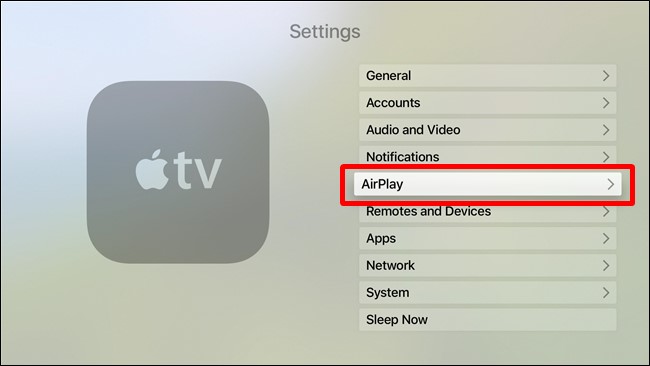
- Before proceeding any further, just make sure, AirPlay is enabled on your Apple Tv. To do so, head on to settings and scroll down to AirPlay.
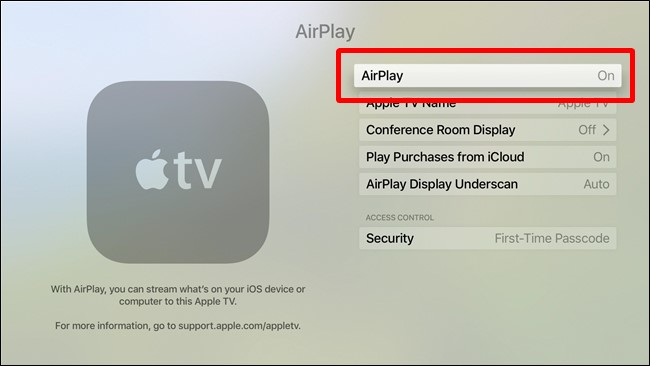
- Now enable the Airplay option and set the value as “ON”.
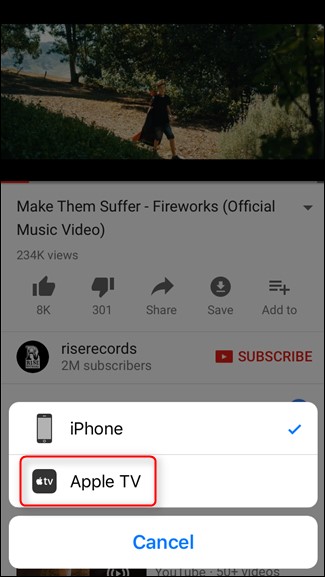
- Now head back to your iOS device and open any video on Netflix or Youtube. Look for the AirPlay icon (small television icon) and click on it.

- Out of various options that’ll emerge select “Apple TV”.
- That’s it! The video will automatically start streaming on your Apple TV now so you can enjoy a wide screening experience.
In order to stop the streaming click on the Airplay icon again and select iPhone or iPad as suitable.
How to Stream iTunes Music and Videos from a Computer on Apple TV
Not just via or iOS device, you can also stream content from your computer on Apple TV. Here’s all you need to know.
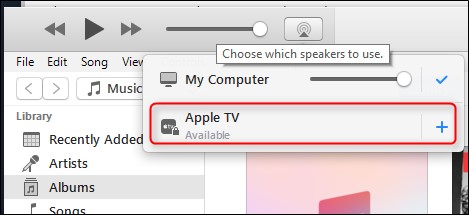
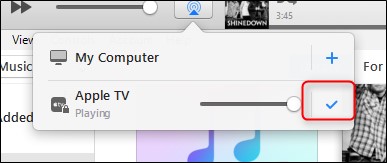
- First launch iTunes and look for the AirPlay icon.
- After tapping the Airplay icon out of various options that will appear select “Apple TV”.
- In order to establish a secure connection you need to input the displayed code on iTunes.

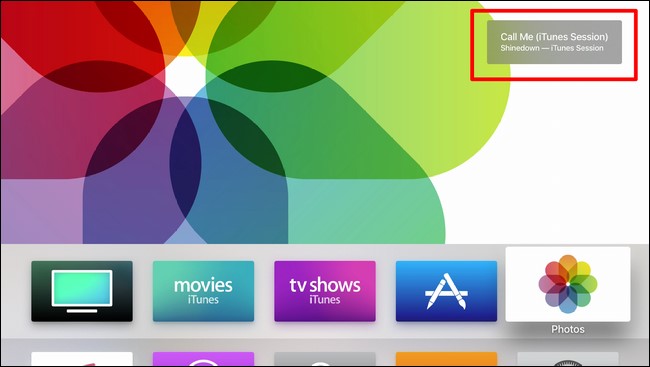
- Once the connection is setup successfully a tiny balloon like icon will appear on your Apple TV screen and as soon as you’ll hit the play button the content will automatically stream on Apple TV.
- Well that’s it! To stop Apple TV from streaming the content, tap on the Airplay icon again on iTunes.
So folks, that was all on streaming content via AirPlay. If you have any other queries on mind feel free to drop us a comment.
For more such interesting article like this, app/softwares, games, Gadget Reviews, comparisons, troubleshooting guides, listicles, and tips & tricks related to Windows, Android, iOS, and macOS, follow us on Google News, Facebook, Instagram, Twitter, YouTube, and Pinterest.